

You’re trying to watch the Champions League final on one screen while your partner streams a 4K nature documentary and your kids are blasting cartoons in the next room. Suddenly, everything buffers. The picture turns into a blocky mess. You wonder if your internet plan is broken or if your router just gave up. It’s rarely the internet provider’s fault; it’s usually a bottleneck in how data moves through your home network.
Streaming multiple 4K videos simultaneously isn’t just about having a fast internet connection. It’s about managing bandwidth, understanding Wi-Fi limitations, and ensuring your hardware can handle the load. If you want seamless playback across several devices without constant buffering, you need to look beyond the speed test numbers and dive into the technical realities of modern streaming.
The Real Bandwidth Math for 4K Streams
Most people think 100 Mbps is plenty for a household. For standard HD, maybe. But 4K is a different beast entirely. When we talk about 4K resolution, which refers to a display resolution of approximately 3840 x 2160 pixels, we are talking about massive amounts of data being pushed through your pipe every second.
Let’s break down the actual numbers. Netflix recommends at least 15 Mbps for a single 4K stream. Amazon Prime Video asks for 15 Mbps as well. YouTube might get away with less due to better compression codecs like VP9 or AV1, but you should budget around 20-25 Mbps per stream to be safe. Why? Because video bitrates aren’t static. They spike during high-action scenes-think explosions, fast cars, or sports-with lots of visual complexity.
If you have three people watching 4K content at once, you aren’t looking at 45 Mbps. You’re looking closer to 75 Mbps of sustained throughput. Add in background updates from smart TVs, phone backups, or someone gaming online, and you quickly hit 100 Mbps. If your plan is capped at 100 Mbps, you’re living on the edge. Any slight interference or congestion will cause those streams to drop quality automatically, often switching down to 1080p or even 720p to keep playing.
Wi-Fi Standards Matter More Than Speed
Here is where most households fail. You might pay for Gigabit fiber, but if your router only supports older Wi-Fi standards, you’ll never see that speed wirelessly. The technology governing how your devices talk to your router is critical when juggling multiple high-bandwidth streams.
Wi-Fi 5 (802.11ac) is still common, but it struggles with simultaneous multi-user MIMO (MU-MIMO) efficiency compared to newer standards. It typically operates on the 5 GHz band, which offers faster speeds but shorter range than the 2.4 GHz band. While 5 GHz is necessary for 4K streaming, Wi-Fi 5 routers often lack the processing power to manage multiple concurrent 4K streams efficiently, leading to latency spikes.
Enter Wi-Fi 6 (802.11ax). This standard was designed specifically for dense environments with many connected devices. It introduces features like OFDMA (Orthogonal Frequency-Division Multiple Access), which allows the router to send data to multiple devices simultaneously rather than waiting for each one to finish its turn. Think of it as a delivery truck that can carry packages for five houses at once instead of making five separate trips.
For streaming multiple 4K videos, Wi-Fi 6 is practically mandatory. It reduces latency and improves efficiency under load. If you haven’t upgraded yet, you are likely experiencing artificial bottlenecks created by outdated wireless protocols.
| Standard | Max Theoretical Speed | Multi-Device Efficiency | Suitability for 3+ 4K Streams |
|---|---|---|---|
| Wi-Fi 5 (802.11ac) | ~1.3 Gbps | Moderate (DL-MU-MIMO) | Poor to Fair |
| Wi-Fi 6 (802.11ax) | ~9.6 Gbps | High (UL/DL MU-MIMO + OFDMA) | Good |
| Wi-Fi 6E | ~9.6 Gbps (adds 6 GHz) | Very High (Less Interference) | Excellent |
| Wi-Fi 7 (802.11be) | ~46 Gbps | Extreme (MLO Support) | Overkill but Future-Proof |
The Hidden Killer: Network Congestion and Latency
Bandwidth is just the width of the highway. Latency is the time it takes for a car to travel from point A to point B. Streaming services buffer ahead, so they tolerate some latency better than online gaming does. However, when you saturate your local network, latency spikes occur.
This happens because of contention. Every device on your network shares the same radio frequency. If your neighbor’s Wi-Fi overlaps with yours, or if your microwave interferes with the 2.4 GHz band, packets get lost. Your router has to retransmit them. For a single stream, this is annoying. For three simultaneous 4K streams, it causes visible stuttering.
Interference is real. In urban areas, dozens of networks fight for airtime. Even in suburban homes, Bluetooth devices, baby monitors, and cordless phones can disrupt signals. Using the 5 GHz band helps avoid much of this clutter, but it doesn’t eliminate it. If you find yourself constantly dropping connections, check your channel selection. Most modern routers auto-select channels, but sometimes manual tuning finds a quieter spot.
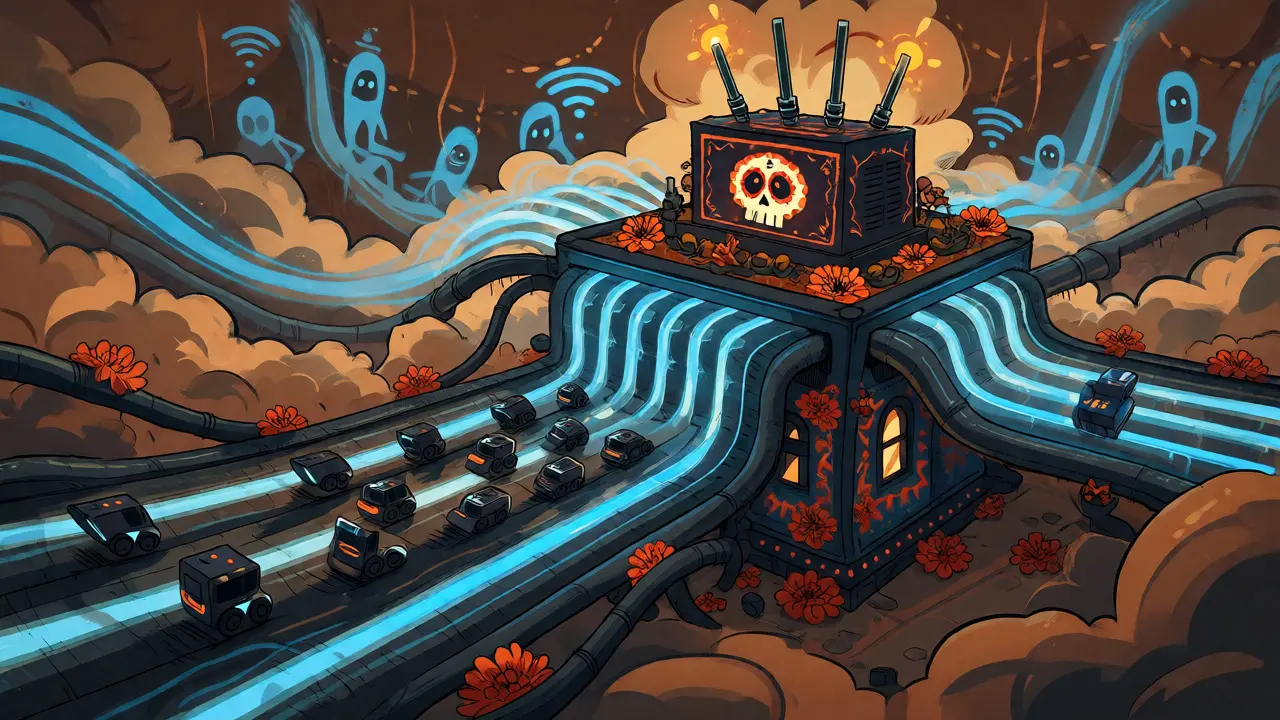
Hardware Bottlenecks: Router CPU and RAM
People obsess over antenna strength but ignore the brain inside the box. Deciding where each packet goes requires processing power. When you push multiple 4K streams, your router’s CPU works hard to encrypt traffic (WPA3 security adds overhead) and route data correctly.
Cheap ISP-provided gateways often have weak processors. They might advertise "Gigabit" ports, but their internal switching fabric can’t sustain full throughput across all ports simultaneously. If your router feels hot to the touch or resets randomly during heavy usage, it’s overheating or overwhelmed. Upgrading to a dedicated router with a quad-core processor and sufficient RAM (at least 512 MB) ensures stable performance under load.
Consider Quality of Service (QoS) settings. Many modern routers allow you to prioritize specific devices or types of traffic. Setting your streaming boxes to "High Priority" tells the router to serve them first when the network gets busy. Without QoS, a large file download on a laptop could starve your TV of bandwidth, causing buffering even if there’s technically enough total speed.
Hardwired vs. Wireless: The Stability Debate
Can you stream multiple 4K videos over Wi-Fi? Yes. Should you? Ideally, no. Ethernet cables don’t care about walls, microwaves, or neighbors. An Ethernet connection provides consistent, low-latency access to the internet.
If you have fixed locations for your main TVs, running Cat6 Ethernet cables is the cheapest way to guarantee stability. It frees up your Wi-Fi spectrum for mobile devices, tablets, and laptops that actually need mobility. This hybrid approach-hardwiring stationary high-bandwidth devices and using Wi-Fi for everything else-is the gold standard for serious media consumers.
If wiring isn’t an option, consider Mesh Wi-Fi systems. Unlike traditional extenders that halve bandwidth, mesh nodes communicate via dedicated backhaul bands (especially in tri-band models). This keeps the main channel clear for your devices. Brands like Eero, Orbi, or TP-Link Deco offer solutions that scale coverage effectively, though they cost more than a single high-end router.

ISP Throttling and Data Caps
Even if your home network is perfect, your Internet Service Provider (ISP) might interfere. Some plans throttle speeds after you exceed a certain monthly data limit. Three 4K streams can easily consume 100 GB per day. That’s 3 TB a month. Do you have unlimited data?
Check your contract. "Unlimited" often comes with caveats. ISPs may slow down peak-time speeds during evenings when network congestion is highest. Since 4K streaming demands consistent throughput, throttling ruins the experience instantly. If you suspect throttling, run speed tests at different times of the day. If your morning speeds are 500 Mbps but evening speeds drop to 50 Mbps, you’ve found your culprit.
Additionally, verify if your ISP uses CGNAT (Carrier-Grade NAT). This shared public IP address can sometimes cause issues with peer-to-peer components of streaming apps or future-proofing for advanced home networking features, though it rarely affects basic unicast streaming significantly.
Practical Steps to Optimize Your Setup
Ready to fix your buffering woes? Follow this checklist:
- Audit your devices: Identify every device capable of streaming 4K. Turn off unused ones. Smart fridges and thermostats use minimal bandwidth, but idle updates can still create noise.
- Upgrade your router: Move to Wi-Fi 6 or 6E if you haven’t already. Ensure it supports MU-MIMO and OFDMA.
- Enable QoS: Prioritize your TV, Apple TV, Roku, or Fire Stick in your router settings.
- Use Ethernet where possible: Connect your primary TV directly to the router.
- Check codec support: Older TVs might not decode HEVC (H.265) or AV1 efficiently, forcing higher bitrates. Ensure your hardware supports modern codecs.
- Monitor real-time usage: Use router apps to see live bandwidth consumption. Spotting a rogue update process can save your movie night.
By addressing these layers-bandwidth, wireless standards, hardware capability, and ISP policies-you transform a frustrating experience into smooth, high-definition entertainment. It’s not magic; it’s engineering.
How much internet speed do I need for two 4K streams?
You need at least 30-50 Mbps of sustained download speed. While providers recommend 15 Mbps per stream, headroom is crucial for handling bitrate spikes and background network activity. A 50 Mbps plan is the minimum comfortable threshold for two simultaneous 4K streams.
Does Wi-Fi 6 make a difference for streaming?
Yes, significantly. Wi-Fi 6 handles multiple devices more efficiently through OFDMA and improved MU-MIMO. This reduces latency and prevents buffering when several devices are active, making it far superior to Wi-Fi 5 for multi-stream households.
Why does my 4K stream buffer even with fast internet?
This is usually due to local network congestion, Wi-Fi interference, or weak router hardware. Even with gigabit internet, if your router cannot process packets fast enough or if signal strength is poor, the stream will stall. Check for interference or switch to Ethernet.
Is Ethernet better than Wi-Fi for 4K streaming?
Yes. Ethernet provides a stable, low-latency connection unaffected by physical obstacles or radio interference. For stationary devices like smart TVs and game consoles, a wired connection guarantees the best possible streaming quality.
Do smart TVs affect network performance?
Older smart TVs with limited RAM and slow Wi-Fi adapters can struggle with 4K decoding and network management. They may also run background apps that consume bandwidth. Keeping firmware updated and closing unused apps helps maintain performance.