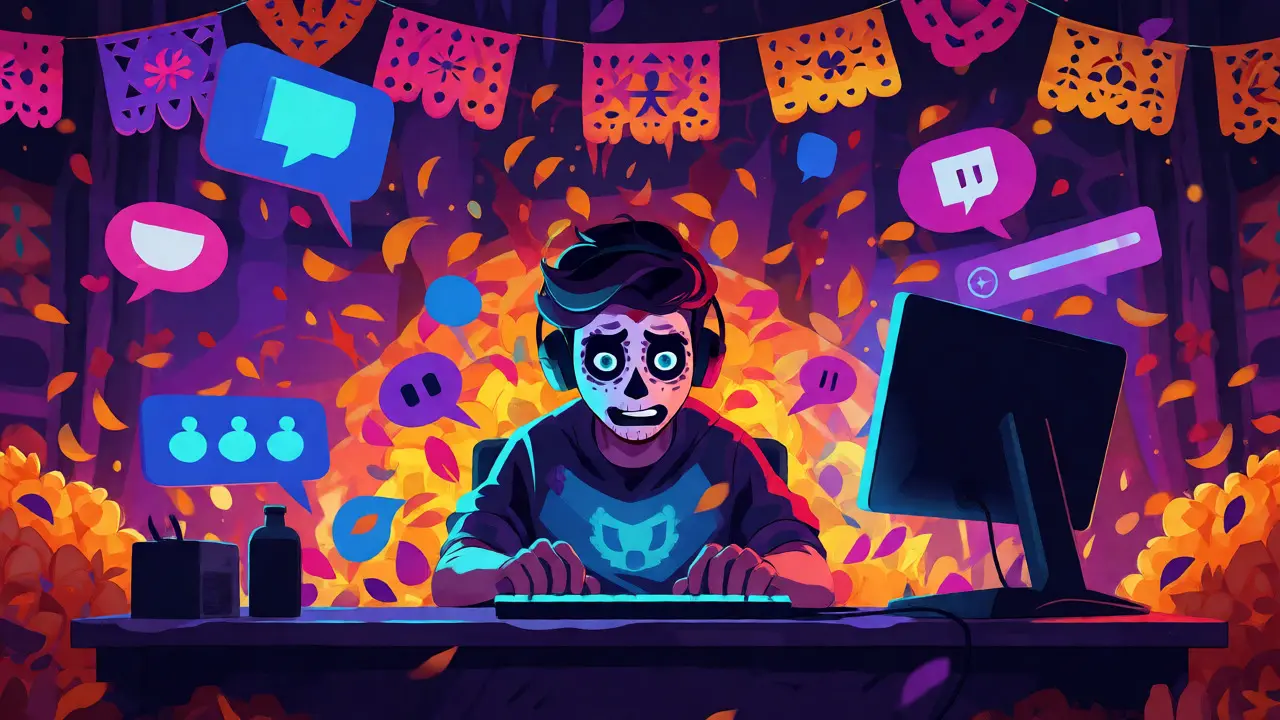
Imagine you are three hours into a live stream. Your viewer count is climbing, the energy is high, and then it happens: a spammer drops a link to a sketchy crypto site in the chat. Then another. Then ten more. If you try to read every message while playing your game or talking to your audience, you will miss the chaos. This is where live streaming moderation becomes your best friend. It is not just about banning trolls; it is about keeping your community safe and your chat readable so people actually want to stay.
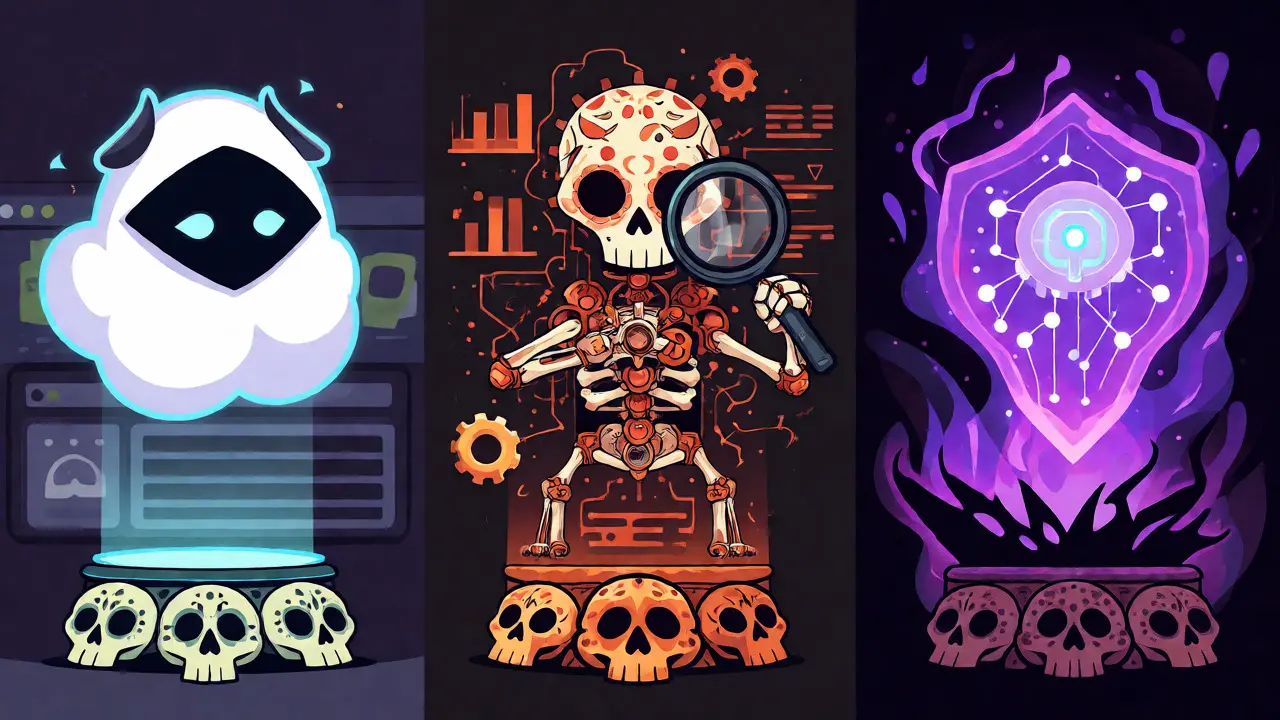
You have probably heard of the big names: Nightbot, a popular cloud-based bot for automating chat commands and filters, Moobot, another veteran automation tool often favored for its detailed stats, and Twitch's native Auto-Mod, an AI-driven filter built directly into the platform. But which one do you actually need? Do you use all of them? Can they work together without causing a war in your chat?
Why You Cannot Moderate Alone
Let's be real: you cannot watch the game, talk to viewers, check donations, and police the chat simultaneously. The human brain isn't wired for that kind of multitasking at scale. When you start small, maybe with five or ten viewers, you can handle it yourself. But once you hit fifty concurrent viewers, the speed of chat increases exponentially. Spam bots don't care about your feelings. They post links every two seconds.
Moderation tools act as your first line of defense. They filter out hate speech, block banned words, and manage cooldowns on repeated messages. More importantly, they free up your mental bandwidth. Instead of worrying if someone said something rude, you trust the system to flag it. This allows you to focus on content creation rather than policing. For most streamers, relying solely on human moderators is risky because mods sleep, get distracted, or burn out. Bots don't.
Nightbot: The Cloud-Based Standard
Nightbot is likely the first name you will hear when asking other streamers what they use. It is a cloud-based service, meaning you don't need to keep a computer running locally for it to work. You log in via a web dashboard, set your rules, and forget about it until you need to tweak them.
The biggest selling point for Nightbot is its simplicity and reliability. It integrates seamlessly with Twitch, YouTube, Discord, and Facebook Gaming. Setting up basic auto-responses-like telling people what game you are playing or linking to your social media-takes minutes. Its spam filter is decent, catching obvious patterns like users posting the same word five times in a row.
However, Nightbot has limitations. Because it is cloud-hosted, it lacks some of the deep customization options that local bots offer. You cannot run complex scripts that require direct access to your local files. Also, during peak server times, you might notice a slight delay in command responses. For casual streamers, this is negligible. For competitive gamers who need instant feedback, it might feel sluggish.
Moobot: The Power User’s Choice
If Nightbot is the easy button, Moobot is the control panel. It has been around since the early days of Twitch and maintains a loyal following among power users who want granular control over their chat experience.
Unlike Nightbot, Moobot often runs locally (though it has cloud features), which means it consumes resources on your PC but offers faster response times and deeper integration. The standout feature here is the statistical depth. Moobot tracks everything: how many times a specific emote was used, who chatted the most, and even sentiment analysis trends over time. If you love data and want to know exactly what resonates with your audience, Moobot delivers.
But there is a catch. Moobot has a steeper learning curve. The interface feels dated compared to modern SaaS platforms. Configuring advanced filters requires understanding regex (regular expressions) or specific syntax that might confuse beginners. Furthermore, because it relies heavily on local processing, if your internet cuts out or your PC crashes, the bot goes down with you. Nightbot stays up regardless of your local status.
Twitch Auto-Mod: The Native Guardian
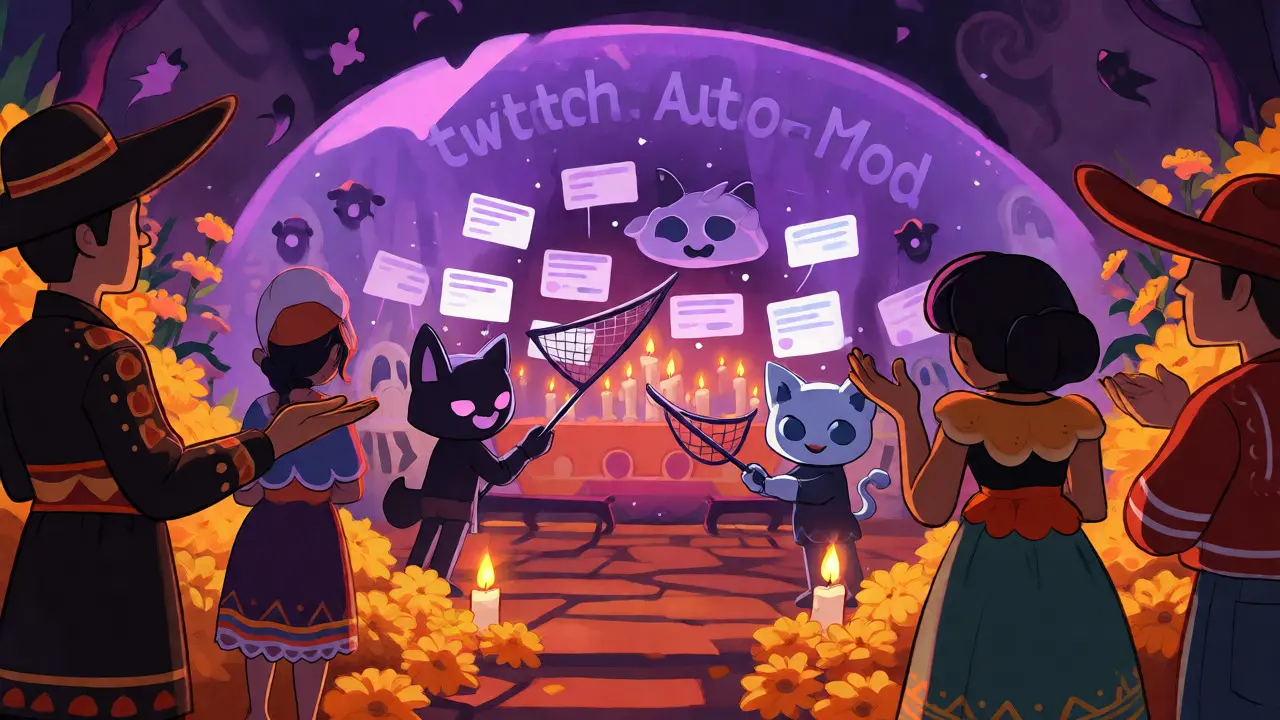
Before you install any third-party software, look at what your platform already gives you. Twitch Auto-Mod is an artificial intelligence system built directly into the Twitch infrastructure. It uses machine learning models trained on millions of chat logs to detect toxicity, harassment, and spam.
Auto-Mod is surprisingly effective at catching context-aware insults that simple keyword filters miss. For example, it understands that "kill" in a shooter game context is different from "kill" in a heated argument. It automatically holds suspicious messages for review by you or your moderators. This reduces the number of false positives where innocent jokes get banned.
The downside? You have less control. Auto-Mod operates on a black-box algorithm. You can adjust sensitivity levels (low, medium, high), but you cannot teach it specific custom rules easily. If it bans a phrase you use ironically, fixing it can be tricky. Additionally, Auto-Mod is exclusive to Twitch. If you simulcast to YouTube, you won't have this protection there unless you use a third-party bridge.
Comparison: Which Tool Fits Your Stream?
Choosing between these tools isn't about finding the "best" one universally; it's about matching features to your workflow. Here is how they stack up against common needs.
| Feature | Nightbot | Moobot | Twitch Auto-Mod |
|---|---|---|---|
| Setup Difficulty | Easy (Web Dashboard) | Moderate/Hard (Local Config) | Very Easy (Built-in) |
| Custom Commands | High Flexibility | Extreme Flexibility | Low (Platform Specific) |
| Spam Filtering | Good (Pattern Based) | Excellent (Regex Support) | Excellent (AI Contextual) |
| Multi-Platform | Yes (Twitch, YT, FB) | Yes (With Setup) | No (Twitch Only) |
| Resource Usage | None (Cloud) | Low-Medium (Local) | None (Server-Side) |
| Cost | Free / Premium Tiers | Free / Paid Features | Free (Included) |
The Hybrid Approach: Using Them Together
Here is the secret most new streamers miss: you don't have to choose just one. In fact, the smartest streams use a layered defense. Think of it like cybersecurity. You wouldn't rely only on your firewall.
A common setup looks like this:
- Layer 1: Twitch Auto-Mod. Turn this on first. Let the AI catch the subtle toxicity and obvious spam before it hits your eyes. Set the sensitivity to Medium initially.
- Layer 2: Nightbot or Moobot. Use this for functional commands (
!socials,!discord) and strict keyword blocking. Add specific slurs or banned topics to the bot's list that Auto-Mod might miss due to regional slang differences. - Layer 3: Human Mods. Assign trusted viewers to handle edge cases. Give them permissions to timeout users flagged by the bots if necessary.
This combination covers the gaps. Auto-Mod handles context, the bot handles rigid rules and utility, and humans handle nuance. Just be careful with command conflicts. If both Nightbot and Moobot listen for !hello, they might both respond, cluttering the chat. Disable duplicate commands across your active bots.
Pitfalls to Avoid
Don't over-filter. I've seen streamers ban so many words that normal conversation becomes impossible. If you ban "hell," "damn," and "crap," you'll frustrate your regulars. Start loose and tighten restrictions only if specific problems arise.
Also, beware of "bot wars." If you invite multiple bots to join your channel, ensure they aren't triggering each other. Some bots respond to keywords; if Bot A says "Hello," and Bot B listens for "Hello," you could get stuck in an infinite loop. Most modern bots have safeguards, but it's worth checking your settings.
Finally, remember that no tool is perfect. False positives happen. Always have a clear appeal process for viewers who get timed out incorrectly. A quick apology from you or a mod goes a long way in maintaining community trust.
Can I use Nightbot and Moobot at the same time?
Yes, you can, but it requires careful configuration. Ensure that you disable overlapping commands and filters to prevent double responses or conflicting actions. Many streamers use one for commands and the other for specific advanced filtering, but for most, sticking to one third-party bot plus Auto-Mod is simpler and sufficient.
Is Twitch Auto-Mod better than Nightbot for spam?
Auto-Mod is generally better at detecting contextual toxicity and subtle harassment because it uses AI. Nightbot is better at catching repetitive spam patterns and managing custom keyword lists. Using both provides the strongest defense against spam.
Do I need to pay for Moobot or Nightbot?
Both offer robust free tiers that are sufficient for most small to mid-sized channels. Paid subscriptions unlock advanced features like longer command limits, priority support, or deeper analytics. Unless you have a very large community with complex needs, the free versions are usually enough to start.
What happens if my internet disconnects while using Moobot?
If Moobot is running locally on your PC and your internet drops, the bot will stop responding until the connection is restored. However, if you use Moobot's cloud hosting option, it may continue to function depending on your subscription plan. Nightbot, being entirely cloud-based, continues to operate independently of your local internet status.
How do I stop bots from reacting to each other?
Check the settings of each bot for "ignore bots" or "ignore self" options. Most modern bots allow you to specify user IDs to ignore. Add the IDs of your other bots to this list. This prevents loops where one bot's output triggers another bot's input.