
Imagine this: you just finished a high-energy live stream. The chat was moving fast, the engagement was real, and you felt like you nailed it. But then, you close your software and realize you didn't hit "record." That content? Gone. It existed for an hour and now it’s dust. In today's digital landscape, losing that moment is more than a missed opportunity; it’s a waste of potential reach. Live Recording is the process of capturing real-time video streams into permanent files for later use. When paired with effective VOD (Video on Demand) management, it transforms fleeting broadcasts into evergreen assets.
You don’t need to be a Hollywood editor to get value from your past streams. You just need a system. This guide breaks down how to save your broadcasts automatically, manage the resulting library, and edit them into clips that actually perform. We’ll look at the technical side, the workflow side, and the strategy side.
The Foundation: How Live Recording Works
Before you can edit or share, you have to capture. There are two main ways this happens in modern streaming setups. Understanding the difference helps you avoid quality loss and storage headaches.
- Client-Side Recording: This happens on your computer using software like OBS Studio or Streamlabs Desktop. The software encodes the video locally before sending it out. If your internet drops, you still have the file. This is usually higher quality because it uses local processing power.
- Cloud-Based Recording: Platforms like Twitch or YouTube Live record the stream on their servers. It’s automatic and requires no extra hardware. However, the bitrate is often lower, and you might lose the first few seconds if the connection glitches.
If you want professional results, client-side recording is the gold standard. It gives you the rawest possible source. Cloud recording is great for backups, but don’t rely on it as your primary master copy if quality matters.
VOD Management: Organizing Your Digital Library
Recording is easy. Managing the files is where most creators fail. A folder named "Streams_2026" quickly becomes a graveyard of unwatchable data. VOD Management is the systematic organization, tagging, and storage of recorded video content. Without it, you can’t find what you need when you need it.
Here is a simple structure that scales:
- Naming Convention: Use a consistent format.
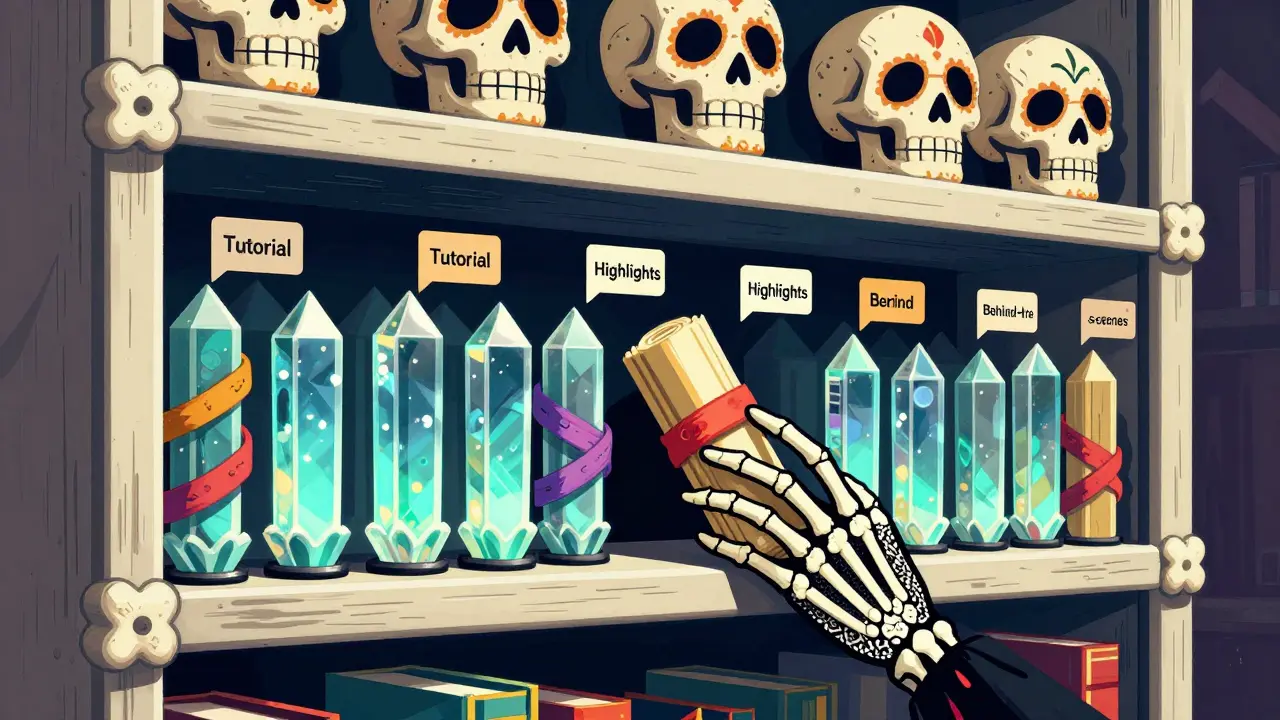
YYYY-MM-DD_ProjectName_Platform.mp4works best. Example:2026-05-12_GamingSession_Twitch.mp4. This sorts chronologically and tells you exactly what’s inside without opening the file. - Metadata Tagging: Add keywords to the file properties or your media server. Tags like "tutorial," "highlights," or "behind-the-scenes" help you filter later.
- Storage Hierarchy: Keep recent files on a fast NVMe SSD for quick editing. Move older archives to a slower HDD or cloud storage like Google Drive or Backblaze B2. Never delete the original master file until you’ve verified the edited versions.
Think of your VOD library as a database, not a dump site. Every file should have a home and a purpose.
Editing Broadcasts: From Raw Footage to Polished Content
A full three-hour stream rarely performs well as a single upload. Viewers have short attention spans. Editing allows you to repurpose one live event into multiple pieces of content. This is called content repurposing, and it multiplies your ROI.
When editing, focus on these three types of cuts:
- The Highlight Reel: Cut out the downtime. Remove loading screens, silent moments, and repetitive tasks. Keep only the action, the jokes, and the key insights. Aim for 5-10 minutes of pure energy.
- The Short Form Clip: Extract 30-60 second moments for platforms like TikTok or Instagram Reels. These need vertical formatting (9:16 aspect ratio). Add captions immediately-most people watch without sound.
- The Evergreen Tutorial: If your stream included a "how-to," strip away the chatty intro and outro. Make it direct. Add jump cuts to remove pauses. This becomes a searchable asset that brings in viewers months later.
Tools like DaVinci Resolve offer powerful free editing suites, while CapCut is faster for social media clips. Choose based on your skill level and time constraints.
Technical Best Practices for Quality
Poor quality kills credibility. Even if your content is great, grainy video and distorted audio will make viewers click away. Here are the non-negotiable settings for 2026 standards.
| Setting | Value | Why It Matters |
|---|---|---|
| Resolution | 1080p (1920x1080) | Standard for web playback; balances quality and file size. |
| Frame Rate | 60 FPS | Smoother motion, especially important for gaming or movement-heavy content. |
| Codec | H.264 or HEVC (H.265) | H.264 is universally compatible. HEVC offers better compression for smaller files. |
| Bitrate | 15,000-20,000 Kbps | Higher bitrate means less artifacting during fast motion scenes. |
| Audio Sample Rate | 48 kHz | Industry standard for clear voice capture. |
Note that HEVC (H.265) requires more CPU power to encode but produces smaller files than H.264. If your computer struggles with H.264, stick to it. If you have a modern processor, HEVC is worth the effort for storage savings.
Monetization and Distribution Strategies
Once your VODs are managed and edited, they become assets. You can monetize them in several ways beyond just ad revenue.
- Premium Access: Use platforms like Patreon or Kajabi to offer extended, uncut versions of streams to paying subscribers. Fans love exclusive behind-the-scenes access.
- Search Engine Optimization (SEO): Upload edited tutorials to YouTube with detailed descriptions and timestamps. This drives organic traffic long after the live event ends.
- Sponsorship Integration: If you have sponsors, ensure their segments are clearly marked in your VOD. Some sponsors pay extra for post-stream visibility if the clip goes viral.
Distribution isn’t just about posting links. It’s about meeting audiences where they are. A gaming highlight belongs on Twitch and TikTok. A business tutorial belongs on LinkedIn and YouTube. Tailor the format to the platform.
Common Pitfalls to Avoid
Even experienced streamers make mistakes. Here are the most common errors that ruin VOD workflows:
- Ignoring Audio Levels: Video quality can be forgiven, but bad audio cannot. Always record a separate audio track if possible, or monitor levels closely. Clipping sounds worse than quiet sounds.
- Over-Editing: Don’t cut so much that the natural flow disappears. Retain some personality and spontaneity. Over-polished content can feel sterile and fake.
- Forgetting Backups: Hard drives fail. Use the 3-2-1 rule: 3 copies of your data, 2 different media types, 1 offsite backup. Losing your entire archive is a career-ending risk.
- Inconsistent Posting: If you edit highlights, schedule them. Random uploads get lost. Consistency builds audience expectation.
Avoiding these traps keeps your workflow smooth and your content valuable.
Should I record locally or rely on cloud recording?
Record locally whenever possible. Local recording via OBS or Streamlabs captures the highest quality source file directly from your PC. Cloud recordings from Twitch or YouTube are compressed and may suffer from sync issues or dropped frames. Use cloud recording only as a backup safety net, not your primary master file.
What is the best file format for archiving VODs?
MP4 with H.264 codec is the safest choice for compatibility across all devices and editing software. If you have a powerful computer and need to save storage space, use MKV with HEVC (H.265). However, always keep a copy in MP4 for easy sharing and editing.
How do I handle large video files without filling my hard drive?
Implement a tiered storage system. Keep active projects on a fast SSD. Move completed edits to a larger HDD. Finally, archive old seasons to cloud storage like Backblaze B2 or Google Drive. Delete temporary cache files regularly and compress raw footage if you don’t plan to re-edit it.
Can I monetize old live streams?
Yes. Edited highlights can earn ad revenue on YouTube. Full uncut streams can be sold as premium content on Patreon or Kajabi. Additionally, searchable tutorials attract new viewers over time, increasing your channel’s overall growth and sponsorship appeal.
Is it better to edit a full stream or create short clips?
Do both. Short clips (TikTok, Reels) are essential for discovery and reaching new audiences. Full edited streams (YouTube, Twitch VODs) serve loyal fans who want deeper engagement. Short clips act as advertisements for your longer content, driving traffic to your main channels.
