
It is easy to forget where you signed up for a subscription. One day you are watching a great show on your TV, and the next month, a charge appears on your credit card statement with no clear way to reverse it. This is a common headache for viewers of Max is a popular streaming service that offers movies, series, and live sports, often bundled or purchased through third-party platforms like app stores. The tricky part? If you subscribed through an app store rather than directly on the Max website, the cancellation process is completely different. You cannot just log into the Max website and hit "Cancel." You have to go back to the source of the payment.
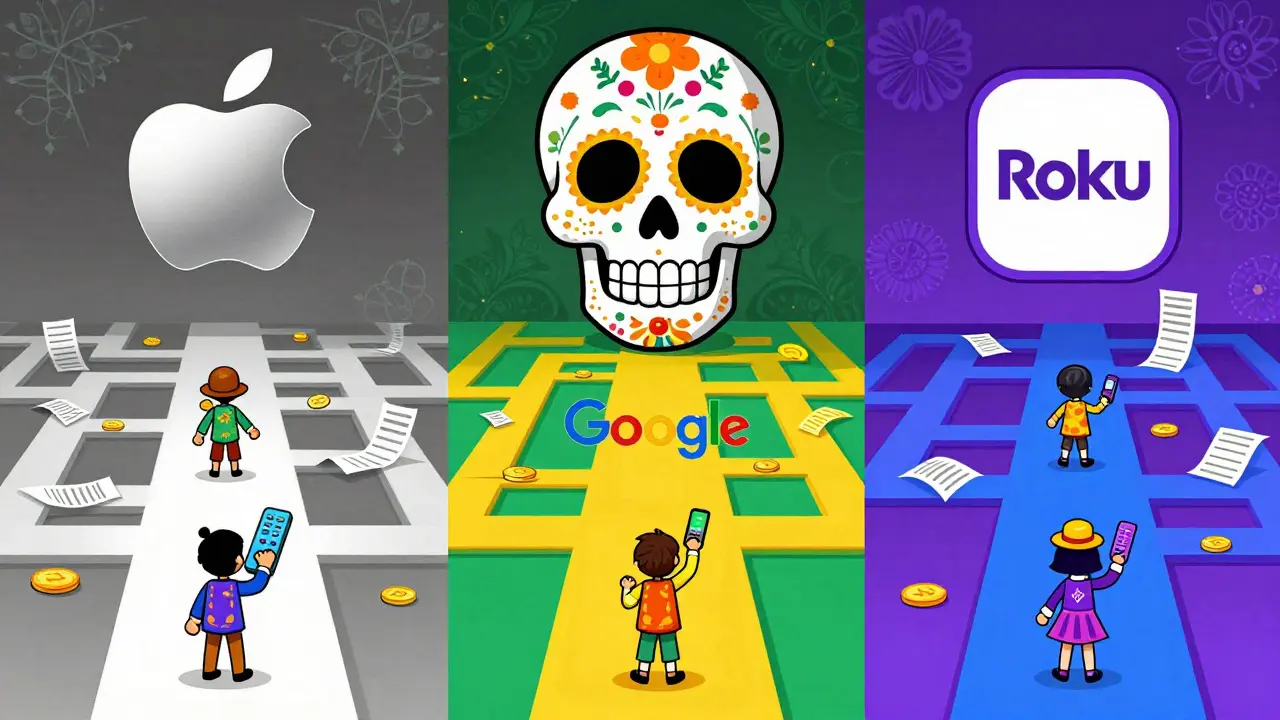
This guide breaks down exactly how to cancel your Max subscription when it was purchased through Apple App Store, Google Play, or Roku. We will cover the specific steps for each platform, explain why the website method fails in these cases, and provide tips to avoid accidental renewals in the future.
Why You Can't Cancel Max on the Website
If you try to cancel Max by logging into max.com, you might find that the "Manage Subscription" button doesn't work as expected, or it redirects you to a page saying your subscription is managed elsewhere. This happens because of how digital goods are sold. When you buy a subscription inside an app ecosystem (like iOS, Android, or Roku), the transaction is handled by that platform's billing system, not by Max's own servers.
The app store acts as the middleman. It collects the money, handles the tax, and manages the renewal date. Therefore, to stop the charges, you must tell the middleman to stop, not the content provider. This is a crucial distinction that saves many people hours of frustration.
Canceling Max on Apple Devices (iOS and macOS)
For iPhone, iPad, or Mac users who installed the Max app from the App Store, the process is centralized in your Apple ID settings. You do not need to open the Max app itself. Here is how to do it:
- Open the Settings app on your iPhone or iPad.
- Tap your name at the very top of the screen to access your Apple ID profile.
- Tap on Subscriptions. If you don't see this option immediately, tap Media & Purchases first, then select View Account, and finally tap Manage Subscriptions.
- Scroll down until you find Max in the list of active subscriptions.
- Tap on Max to view the details.
- Select Change Subscription Options or simply toggle off Auto-Renew.
- A confirmation pop-up will appear. Tap Confirm.
You will keep access to Max until the end of your current billing period. After that date, the service will pause, and you won't be charged again unless you re-subscribe. If you use a Mac, you can also manage this via the Music app (formerly iTunes) by going to Account > Manage Subscriptions.
Canceling Max on Android and Google Play
If you are using an Android phone or tablet, or if you subscribed through a Chromecast device linked to your Google account, the Google Play Store is your control center. Many users mistakenly look in their email receipts, but the actual management tool is in the Play Store.
- Open the Google Play Store app on your Android device.
- Tap the profile icon in the top right corner.
- Select Payments & subscriptions.
- Tap on Subscriptions.
- Find Max in the list. If you don't see it, check the "Past purchases" tab, though active subs should be at the top.
- Tap on Max to open the subscription details.
- Choose Cancel subscription.
- Follow the prompts to confirm. Google may ask you why you are leaving; you can skip this or select a reason.
Alternatively, you can do this from any computer by visiting play.google.com/store/account/subscriptions. Log in with the same Google account used for the purchase. This web interface is often faster if you are sitting at a desk and want to avoid navigating through phone menus.
Canceling Max on Roku Devices
Roku has its own unique billing structure. Unlike Apple and Google, which handle payments centrally, Roku channels often allow you to subscribe directly within the channel interface, linking the payment to your Roku account. To cancel:
- Navigate to the Max channel on your Roku home screen.
- Press the * (asterisk) button on your remote to open the options menu.
- Select Manage Subscription. Note: Some versions of the channel may only show "Remove Channel." If so, removing the channel usually cancels the associated subscription, but it's safer to check your account online.
- If you choose "Remove Channel," confirm the action. Your subscription will typically remain active until the end of the billing cycle, but auto-renewal stops.
For more control, visit roku.com on a web browser. Log in to your Roku account, go to My Account, and select Channel Management. Find Max in the list of purchased channels. Click on it and select Uninstall or Manage Subscription depending on what options are available. This ensures the link between your Roku account and the Max service is severed properly.
Common Pitfalls and How to Avoid Them
Even after following the steps above, some users still get billed. Here are the most common reasons why:
- Multiple Accounts: Did you sign up with a work email on one device and a personal email on another? Check all your email accounts for receipt confirmations to identify which email address holds the subscription.
- Family Sharing: On Apple, if a family member bought the sub, you need *their* Apple ID to cancel it. You cannot cancel someone else's subscription from your own settings.
- Free Trials: Sometimes, a free trial converts to a paid plan automatically. If you forgot to cancel during the trial window, the first charge is inevitable. However, you can still cancel immediately after the first charge to prevent subsequent ones.
- Price Changes: Max occasionally adjusts pricing. If you subscribed a long time ago, your price might differ from the current advertised rate. This doesn't affect the cancellation process, but it explains why your bill looks different.
Pro tip: Set a calendar reminder for the day before your renewal date. If you ever decide to come back, you can easily re-subscribe without losing your watch history or profile data, provided you use the same account credentials.
What Happens After You Cancel?
Once you turn off auto-renew, your access to Max continues until the end of the current billing period. For example, if you pay monthly on the 15th and cancel on the 20th, you can watch until the 14th of the next month. After that, your profile becomes inactive. You won't lose your watchlist or progress permanently, but you will need to log in again to resume them if you resubscribe later.
Your payment method remains attached to your app store account. No separate refund is issued for unused days unless customer support intervenes. So, timing matters. Canceling on the last day of your cycle gives you maximum value; canceling on the first day means you paid for almost nothing.
Frequently Asked Questions
Do I need to delete the Max app to cancel my subscription?
No. Deleting the app does not cancel the subscription. You must change the billing settings in the App Store, Google Play, or Roku account. You can keep the app installed to watch your remaining content until the cycle ends.
Can I cancel Max on one device and keep it on another?
Only if you have two separate subscriptions. If both devices are linked to the same billing account (e.g., the same Apple ID), canceling on one cancels it for all. If you bought separately on an iPhone and an Android phone, you must cancel each individually.
Will I get a refund if I cancel mid-month?
Generally, no. Most streaming services, including Max, operate on a full-cycle basis. You pay for the whole month regardless of when you cancel. Refunds are rare and usually require contacting customer support with a valid reason.
Why isn't Max showing up in my subscription list?
Check if you are logged into the correct account. Also, verify if you subscribed via a direct web login instead of the app store. If you used max.com to sign up, the subscription is managed there, not in your phone settings.
Does canceling Max delete my watch history?
No. Your profile data, including watch history and recommendations, is stored on Max's servers. It remains intact even if your subscription lapses. You can pick up right where you left off if you resubscribe.