
Nothing kills the mood like sitting down for movie night and finding your Chromecast is unavailable. You press cast, get the error, and the frustration builds instantly. Most people just keep tapping the button hoping it works. That rarely helps. In most cases, the issue isn’t the device itself; it’s how your home network handles the handshake between your phone and the stick.
I've seen hundreds of these tickets come through from frustrated households here in New Zealand. Usually, by the time they contact us, they've already tried unplugging everything. We need to look deeper than a simple reboot. The core problem almost always lies in network segmentation or signal interference. Today, we walk through exactly what breaks casting connections and how to force them back online without losing your mind.
Check the Network Handshake First
Before you panic about hardware failure, verify that your devices actually talk to each other. Your Chromecast connects via Wi-Fi, while your phone might be on mobile data or a different frequency band. If they aren’t on the exact same Subnet ID, the discovery process fails silently.
This happens often with dual-band routers that separate 2.4GHz and 5GHz networks with different names. Your phone grabs the strong 5GHz signal, while your Chromecast gets stuck on the slower 2.4GHz mesh node. To fix this, open your router settings and ensure “SSID Unification” is enabled so all devices share one network name. Alternatively, manually switch your phone’s Wi-Fi settings to match the channel band your Chromecast reports in the Google Home app.
You can also check the Router settings affecting local connectivity. Some modern routers have a feature called “Guest Isolation” or “AP Isolation.” This security feature stops devices on your network from seeing each other to prevent hacking. Ironically, it prevents your phone from finding your Chromecast. Go into your router dashboard (usually at 192.168.1.1), look for Wireless Settings, and ensure Client Isolation is turned OFF.
Reset the Google Home App Cache
Sometimes the fault lies on your end, specifically inside the application controlling the device. If you recently updated your operating system or the app itself, cached files can get corrupted. This leads to the “Casting not available” message even when the internet is working fine elsewhere.
- Open your phone’s Settings menu.
- Go to Apps or Application Manager.
- Find “Google Home” in the list.
- Select Storage, then tap “Clear Cache” (do not clear data yet unless asked).
If clearing the cache doesn’t work, try logging out of the account within the app and signing back in. This forces the app to re-authenticate with Google servers, refreshing the token that allows casting permissions. Often, this resolves temporary glitches where the service thinks your permission level is restricted.
Fix Signal Strength and Interference
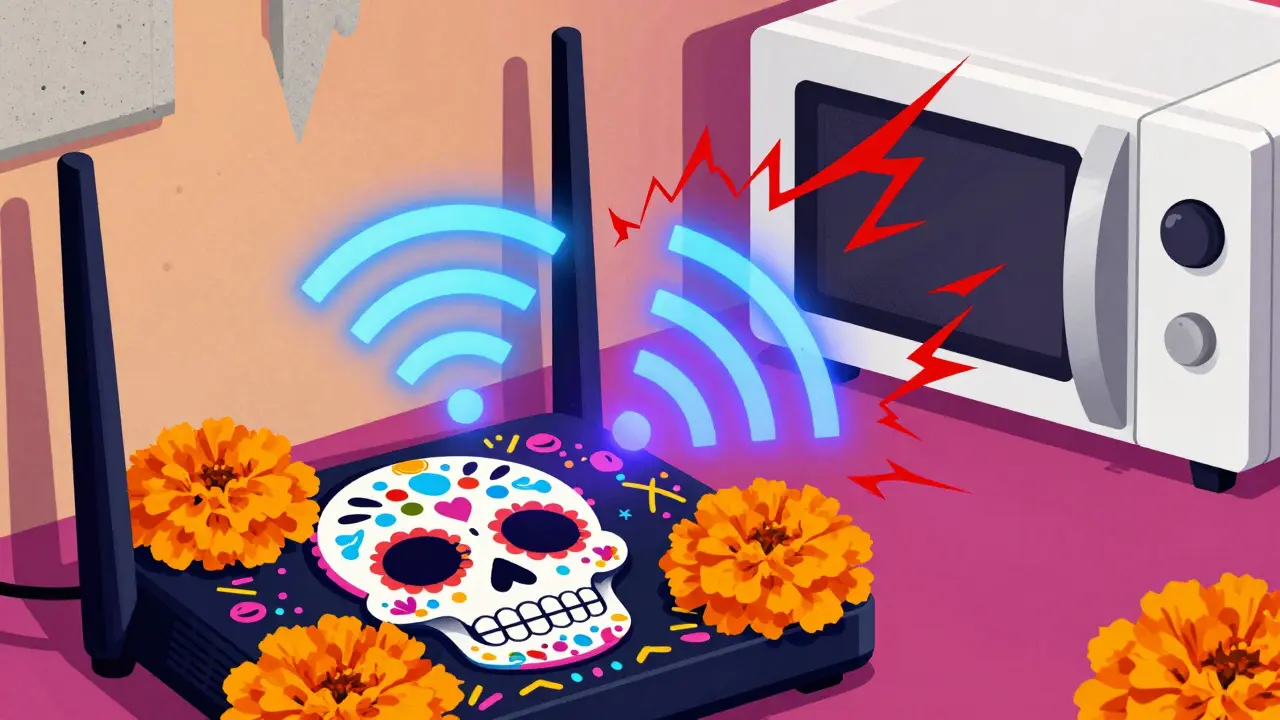
A weak Wi-Fi signal is a major cause of dropouts during playback. Unlike standard browsing, casting requires a constant high-speed stream. A momentary dip causes the buffer to run dry, and the connection drops entirely. Physical obstacles like thick concrete walls common in older Auckland apartments play a role here too.
| Source | Impact Level | Solution |
|---|---|---|
| Microwaves | High | Move Chromecast away from kitchen appliances |
| Baby Monitors | Medium | Switch to 5GHz Wi-Fi band |
| Neighbor Networks | Variable | Use least congested channel (1, 6, or 11) |
If you can’t move your router, use an Ethernet-to-Powerline adapter or a Wi-Fi extender. While not ideal for video quality, getting the signal stronger than -70dBm usually stabilizes the handshake. For those using the newer Chromecast with Google TV, you can check signal strength directly in Settings under Network. If bars are low, adjust your router’s position immediately.
Update Firmware on Legacy Devices
If you own an older dongle, like the original Chromecast (first generation), remember that hardware updates happen automatically when plugged in. However, they sometimes fail to fetch the update due to poor connection history. The device stays on an outdated version of software that may no longer be supported by newer apps like Netflix or YouTube.
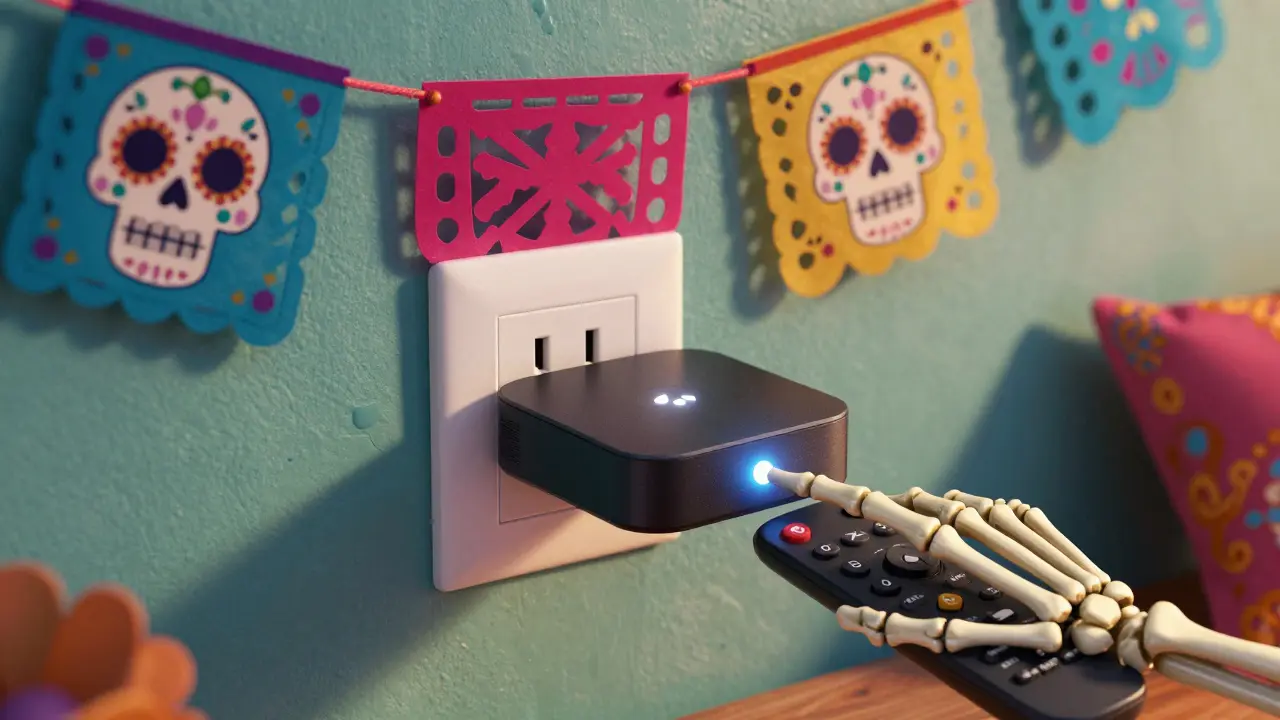
Force an update by connecting the USB power cable directly to a wall outlet instead of the TV port. TVs often cut power to HDMI ports during standby, preventing background updates. Leave it plugged in for 30 minutes. Look for the status light flashing rapidly blue; that indicates an active update. Once steady white returns, restart your router and try casting again. This step is critical for anyone who hasn’t touched their device in over six months.
Bypass the Standard Router Port
Some ISPs provide routers that handle routing duties poorly. In New Zealand, providers like Spark or Chorus sometimes bundle equipment with strict firewall rules that block UDP traffic on port 5353 (multicast DNS). Casting relies heavily on mDNS broadcasts to discover devices. If this port is blocked, your phone literally cannot see the device exists.
The workaround involves using “Port Forwarding.” Log into your main modem, find the forwarding section, and open UDP port 5353 to the local IP address of your Chromecast. Note that your Chromecast IP address can change after reboots, so assigning a Static IP address via DHCP Reservation in the router settings ensures the rule never expires. This is an advanced fix but the ultimate solution for stubborn router blocks.
Hard Reset When All Else Fails
If none of the above steps yield results, the device logic board may have gotten into a corrupted state. Performing a factory reset clears all local settings, passwords, and configurations, returning it to box-fresh condition. Do this only when necessary, as you’ll lose personalized watchlists and saved preferences.
For the latest models, hold the button on the remote control (if included) until the screen shows setup mode. For the dongle type, you need to access the LED indicator on the back cover (on very old units) or simply unplug the power supply completely. Wait a full minute before plugging it back in. Then, use the Google Home app to set it up as a new device. This forces a fresh negotiation with your Wi-Fi router.
Understanding Compatibility Limits
Occasionally, the issue isn’t technical at all. You might be trying to cast content from an app that no longer supports Chromecast technology. Many third-party apps removed “Dial-up” protocols in recent years to push users toward proprietary ecosystems. Also, ensure your smartphone OS hasn’t hit end-of-life support for the Cast receiver protocol.
If your phone is running a version of iOS or Android released five years ago, the Google Cast SDK embedded in it might lack the encryption keys needed for today’s streams. Updating your phone’s operating system is a prerequisite if hardware checks pass every time.
Why does my Chromecast appear offline when Wi-Fi works?
This is often caused by your phone being on a guest network while the Chromecast is on the main network, or vice versa. Devices on separate segments cannot discover each other for security reasons.
Can power outages affect the ability to cast?
Yes, sudden power loss can corrupt the device’s firmware or configuration files. Rebooting both the router and the dongle usually restores proper operation after a brownout.
Is there a distance limit for casting?
Bluetooth is not used for casting transmission, only initial pairing. Distance depends solely on your Wi-Fi coverage. If your signal drops below -70dBm, buffering or disconnection occurs.
Why does casting fail only on certain apps?
Some apps have disabled external casting rights due to licensing agreements. Additionally, if the app hasn’t been updated to the current Cast SDK, older DRM tokens may expire unexpectedly.
Do I need 5GHz Wi-Fi for HD streaming?
Not necessarily for standard definition, but yes for HD or 4K. 2.4GHz lacks the bandwidth for stable high-bitrate video, causing stutters that break the connection flow.
