

Ever been in the middle of a Netflix show, only to realize the subtitles are in Spanish when you’re trying to follow along in English? Or maybe the audio is in Japanese and you didn’t even notice until halfway through? It’s frustrating - and it happens way more often than you think. The good news? Changing subtitles and audio languages on Netflix is simple. No app updates, no logouts, no tech headaches. Just a few taps or clicks, and you’re back to watching exactly how you want.
Why Language Settings Matter
Netflix isn’t just a streaming service - it’s a global platform with content from over 190 countries. That means you’re not just watching American shows. You’re watching Korean thrillers, French dramas, Indian comedies, and Nigerian action films. Each one comes with multiple audio and subtitle tracks. But if your settings are stuck on default, you might be missing out.
For example, if you’re learning Spanish, switching the audio to Spanish and turning on Spanish subtitles can turn your evening watch into a language lesson. Or if you’re watching a documentary with heavy accents, turning on English subtitles helps you catch every word. It’s not just about convenience - it’s about control.
How to Change Subtitles and Audio on a TV
Most people watch Netflix on their TV, whether it’s a smart TV, Roku, Apple TV, or PlayStation. Here’s how to switch languages on those devices:
- Start playing any show or movie.
- Press the Options button on your remote. On most remotes, it’s the gear icon or the Settings button. On Apple TV, it’s the Menu button.
- A small menu will pop up at the bottom of the screen. Look for the Audio & Subtitles option - it usually has a speaker and speech bubble icon.
- Tap it. You’ll see two lists: one for Audio and one for Subtitles.
- For audio, scroll through the list of available languages. Pick the one you want. For subtitles, choose Off, English, Spanish, or any other available option.
- Once you select, the change happens instantly. No need to restart the show.
Pro tip: Some shows have forced subtitles - those are subtitles that can’t be turned off because they’re part of the scene (like signs in a foreign country). If you see subtitles that won’t disappear, that’s why.
How to Change Subtitles and Audio on a Phone or Tablet
If you’re watching Netflix on your iPhone, iPad, or Android device, the process is even easier:
- Open the Netflix app and start playing something.
- Tap the screen once to bring up the playback controls.
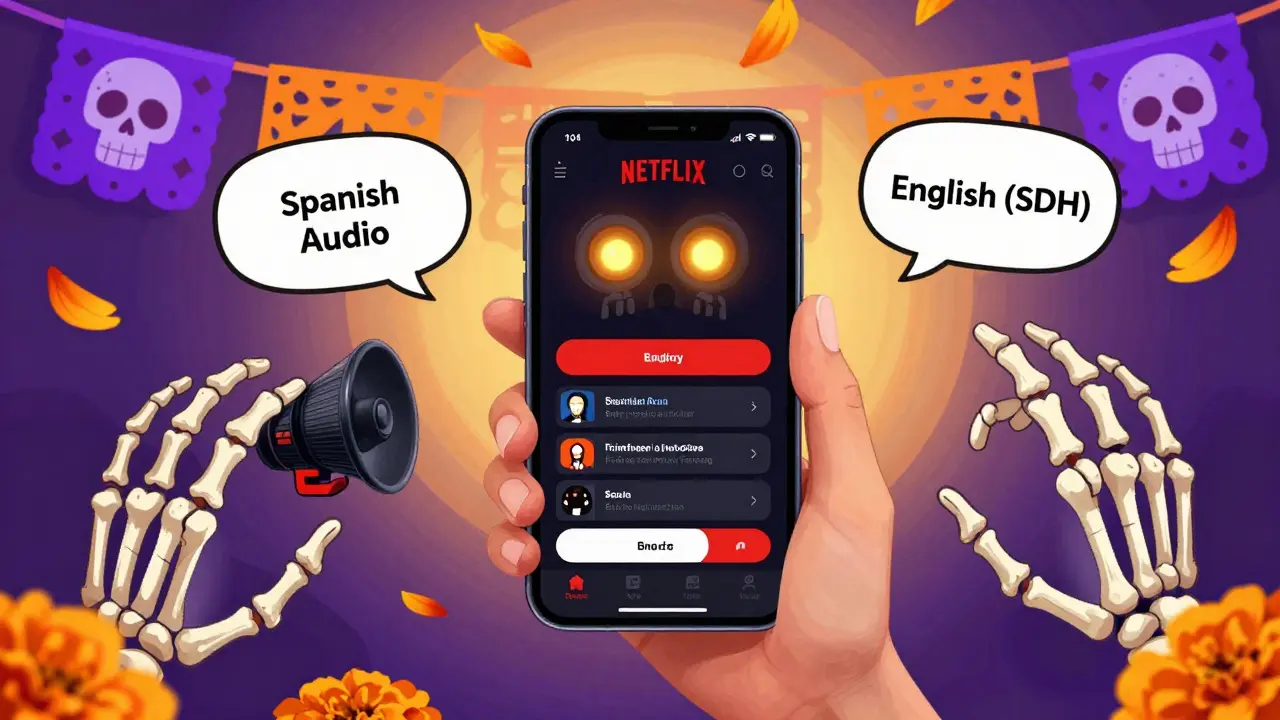
- Look for the Audio & Subtitles icon - it’s in the bottom-right corner. It looks like a speaker with a speech bubble.
- Tap it. You’ll see a list of available audio tracks and subtitle languages.
- Tap your preferred audio language. Then tap your preferred subtitle option.
- Tap Done and the changes apply immediately.
On Android, you might need to tap the screen twice to make the controls appear. On iOS, it’s one tap. Both work the same way.
How to Change Subtitles and Audio on a Computer
Watching Netflix on your laptop? Same rules, different buttons.
- Open Netflix in your browser and start playing a show or movie.
- Move your mouse over the video. A bar will appear at the bottom.
- Click the Audio & Subtitles button - it looks like a speaker with a speech bubble.
- Select your audio language from the list. Then choose your subtitle language.
- Click Apply (or just click the option - it saves automatically).
On Windows or Mac, you can also use keyboard shortcuts. Press Ctrl + Shift + S (Windows) or Cmd + Shift + S (Mac) to open the subtitle menu. Press Ctrl + Shift + A (Windows) or Cmd + Shift + A (Mac) to open the audio menu. These shortcuts work in Chrome, Firefox, and Edge.
Set a Default Language for All Future Shows
Here’s the game-changer: you don’t have to change this every time. Netflix lets you set a default language profile so every show you watch uses your preferred audio and subtitles.
Here’s how:
- Go to netflix.com/account on your computer.
- Scroll down to the Profile & Parental Controls section.
- Click on your profile name.
- Under Language, you’ll see two options: Display Language and Audio & Subtitles.
- For audio, pick your preferred language (like English, Spanish, French, etc.).
- For subtitles, choose your default subtitle language. You can also pick Off if you never want them.
- Click Save.
Now, every time you play something - on any device - Netflix will automatically use your chosen audio and subtitle settings. No more guessing. No more menu diving.
Why Some Shows Have Fewer Language Options
You might notice that some shows only offer English audio and subtitles, while others have 10+ options. Why?
It’s not Netflix’s fault. It’s about licensing. When Netflix buys the rights to a show, they also buy the rights to the audio and subtitle tracks that come with it. Some international productions don’t have full dubs or subtitles available. Others are made by smaller studios that only provide one language.
For example, a Netflix original like Money Heist has 20+ audio and subtitle options because Netflix invested in full translations. But a lesser-known Thai drama might only have English subtitles because the original creators didn’t produce other versions.
There’s no way to force more languages - but you can always check the show’s info page before watching. Scroll down to the Details section. If it says Audio: English, Spanish, French, that’s all you’ll get.
What About Accessibility Subtitles?
Netflix offers something called Accessibility Subtitles - also known as SDH (Subtitles for the Deaf and Hard of Hearing). These aren’t just translations. They include sound cues like [door slams], [music fades], or [laughter]. They’re perfect if you’re watching in a quiet room or if you’re hard of hearing.
To find them, look for the subtitle option that says English (SDH) instead of just English. It’s usually listed right after the regular subtitle option. Same goes for Spanish (SDH), French (SDH), etc.
Common Mistakes People Make
Even though this is simple, people mess it up all the time. Here are the top three mistakes:
- Mistake 1: Changing the language on one device and assuming it changes everywhere. Nope. You have to set your profile default on the website.
- Mistake 2: Choosing Auto for subtitles. That’s not a language - it’s Netflix guessing based on your profile. It often gets it wrong.
- Mistake 3: Thinking the subtitle language matches the audio. It doesn’t. You can have Spanish audio with English subtitles - and it’s totally legal.
Always double-check. Tap the button. Look at the options. Don’t assume.
What If You Can’t Find Your Language?
Maybe you speak Tagalog, Arabic, or Swedish, but you don’t see it listed. That doesn’t mean Netflix doesn’t support it. It means the specific show you’re watching doesn’t have that language track.
Try switching to a different show - like Stranger Things or The Crown. Those have full language packs. If you see your language there, then it’s not Netflix - it’s the show.
Or, go to the Language settings on your profile and check if your preferred language is even enabled. Sometimes, profiles get reset after updates.
Final Tip: Use This for Language Learning
Want to learn French? Watch a French show with French audio and French subtitles. No need for apps. No flashcards. Just Netflix. Studies show that watching media in a second language improves listening skills faster than textbooks. Pick something with clear dialogue - like Call My Agent! or Dark (German with English subtitles). Watch one episode a day. In a month, you’ll notice a difference.
Same goes for Spanish, Japanese, Korean - any language. Netflix is free. Your brain is too. Use it.
Can I change subtitles and audio for downloaded Netflix shows?
Yes. Even offline, you can change subtitles and audio on downloaded shows. Open the Netflix app, tap the show you downloaded, and tap the screen to bring up the playback controls. Then select the Audio & Subtitles icon. Your saved profile settings will apply, and you can switch languages just like you would online.
Why does Netflix sometimes show subtitles in the wrong language?
This usually happens if your profile’s default subtitle language is set incorrectly, or if you’re using a shared profile with someone else’s settings. Check your profile settings on netflix.com/account to make sure your preferred language is selected. Also, avoid using "Auto" - it’s unreliable.
Can I have different audio and subtitle languages at the same time?
Absolutely. You can have Spanish audio with English subtitles, French audio with German subtitles - whatever combination you want. Netflix doesn’t lock them together. Just pick each one separately in the Audio & Subtitles menu.
Do all Netflix shows have multiple language options?
No. Only Netflix originals and major licensed titles have full language packs. Smaller international shows might only offer one or two languages. Check the show’s Details page before watching to see what’s available.
Will changing my language settings affect other profiles on my account?
No. Each profile on your Netflix account has its own language settings. If you change yours, your kids, partner, or roommate won’t notice anything different. Your settings are personal and won’t override anyone else’s.
