
Have you ever sat down to watch a movie on your brand-new OLED TV, only to notice the colors look washed out or the action feels slightly stuttery? You’re not imagining it. The culprit is usually your Apple TV 4K, which defaults to safe, generic settings that don’t push your display to its limits. To get the best picture possible, you need to tweak two specific settings: Match Frame Rate and Dynamic Range. Getting these right transforms your viewing experience from "good" to "cinematic."
Why Default Settings Are Holding You Back
Out of the box, Apple configures the device to be compatible with as many TVs as possible. This means it often sticks to 60Hz refresh rates and standard dynamic range (SDR) unless explicitly told otherwise. While this ensures stability, it sacrifices visual fidelity. If you have a modern 4K TV, especially one supporting HDMI 2.1, leaving these settings at default is like driving a sports car in first gear. You aren't using the hardware you paid for.
The goal here isn't just about making things "look pretty." It’s about synchronization. When your content’s native frame rate matches your TV’s refresh rate, motion becomes smoother. When the dynamic range matches, blacks become deeper and highlights pop. Let’s break down exactly how to set this up.
Understanding Match Frame Rate
Match Frame Rate is a setting that adjusts your TV's refresh rate to match the source material's frame rate. Most movies are shot at 24 frames per second (fps). Many TV shows and live sports run at 30 fps or 60 fps. If your TV is locked at 60Hz while playing a 24fps movie, the TV has to repeat frames to fill the gap. This creates a subtle judder known as "telecine judder," which can make smooth cinematic pans look choppy.
When you enable Match Frame Rate on your Apple TV 4K, the device communicates with your TV via HDMI-CEC to switch the panel’s refresh rate dynamically. Watching a 24fps film? Your TV switches to 24Hz. Switching to a 60fps gaming session or news broadcast? It jumps back to 60Hz. The result is buttery-smooth motion without the artificial soap-opera effect caused by motion interpolation.
How to Enable Match Frame Rate
- Navigate to Settings on your Apple TV home screen.
- Select Video and Audio.
- Find Match Frame Rate and toggle it to On.
Note: You might see a brief black screen when switching between apps or content types. This is normal. It’s the handshake between the Apple TV and your TV renegotiating the signal frequency. If you find the black screens annoying, you can leave it off, but you’ll lose that perfect motion sync.
Dynamic Range: SDR vs. HDR vs. Dolby Vision
Dynamic Range refers to the difference between the darkest darks and brightest brights an image can display. Standard Dynamic Range (SDR) is limited in brightness and color volume. High Dynamic Range (HDR) expands this significantly. But there’s more nuance than just turning HDR on.
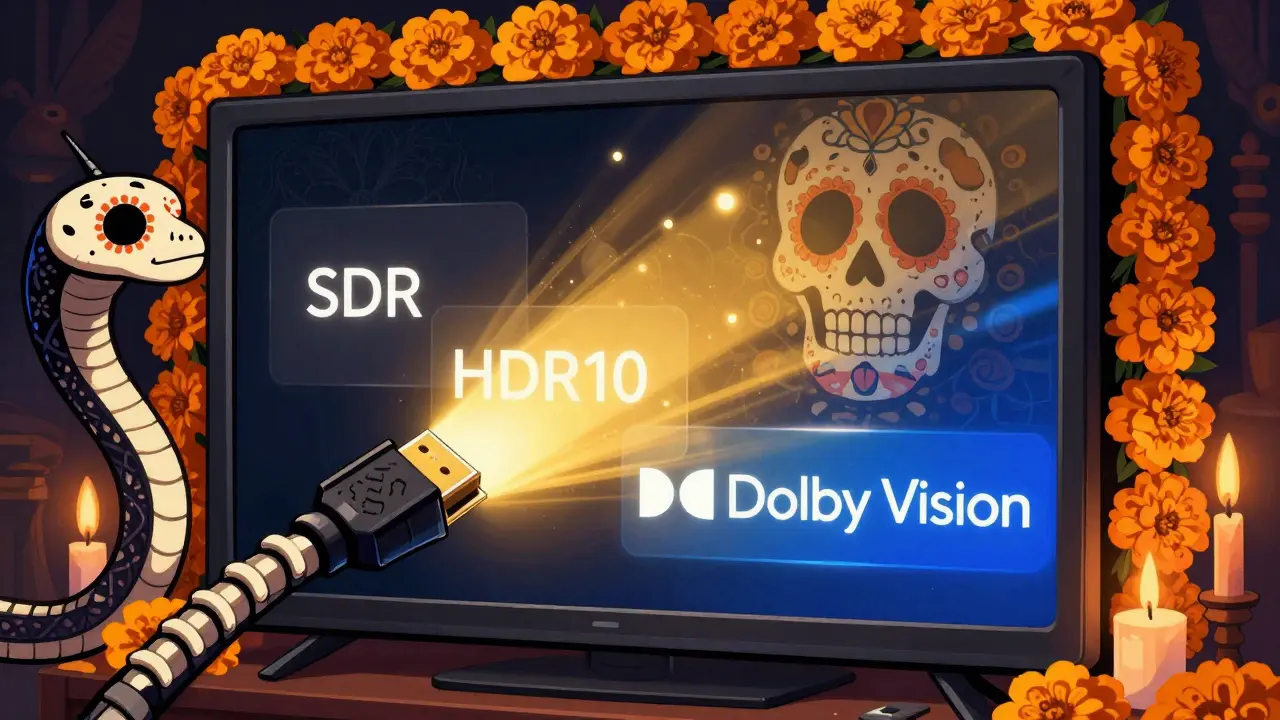
Apple TV 4K supports three main formats:
- SDR: Standard definition. Use this only if your TV doesn’t support HDR.
- HDR10: The open standard supported by almost all 4K TVs.
- Dolby Vision: A proprietary format that uses dynamic metadata to adjust brightness and color scene-by-scene, even frame-by-frame.
If you have a TV that supports Dolby Vision (most high-end LG, Sony, and Samsung models do), this is the gold standard. It provides the most accurate color grading intended by the filmmakers. However, not all content is available in Dolby Vision. Netflix, Disney+, and Apple TV+ have extensive libraries, but other services may only offer HDR10 or SDR.
Configuring Dynamic Range Settings
To ensure you’re getting the best possible signal, follow these steps:
- Go to Settings > Video and Audio.
- Select Format.
- Choose Automatic. This allows the Apple TV to negotiate the highest quality format your TV supports for each piece of content.
Avoid locking it to "Dolby Vision" or "HDR10" manually unless you have a specific reason. If you lock it to Dolby Vision and play SDR content, the TV might struggle to map the colors correctly, leading to weird tints or crushed blacks. "Automatic" lets the device handle the complexity.
| Format | Brightness Level | Color Gamut | Best For |
|---|---|---|---|
| SDR | Low (up to 100 nits) | Rec.709 | Older TVs, local files |
| HDR10 | High (up to 10,000 nits) | Rec.2020 | Universal 4K compatibility |
| Dolby Vision | Dynamic (Scene-by-scene) | Rec.2020 + Metadata | Premium cinematic experience |
HDMI Bandwidth and Cables Matter
Even with perfect settings, garbage in equals garbage out. To support 4K resolution at 60Hz with HDR or Dolby Vision, you need significant bandwidth. The Apple TV 4K (especially the 2nd and 3rd gen models) requires an HDMI 2.0 cable minimum, but Ultra High Speed HDMI (HDMI 2.1) is recommended for future-proofing.
If you’re using an older, cheap HDMI cable, you might experience flickering, black screens, or the TV refusing to accept the 4K HDR signal. Check the label on your cable. If it says "High Speed HDMI," it might work, but "Premium High Speed" or "Ultra High Speed" is safer. Also, ensure you’re plugging into the correct HDMI port on your TV. Many TVs have dedicated "eARC" or "HDMI 2.1" ports that offer higher bandwidth. Using a standard port might limit your output to 4K@30Hz, which kills the smoothness of UI navigation and gaming.
Troubleshooting Common Issues
Sometimes, enabling these features causes headaches. Here’s how to fix them.
Black Screen on App Switch: If you switch from YouTube to Netflix and get a black screen for 5-10 seconds, it’s because the frame rate or dynamic range changed. If this is too disruptive, turn off Match Frame Rate. Alternatively, check if your TV’s "Auto Low Latency Mode" (ALLM) is enabled, which can speed up these transitions.
Washed Out Colors: If your picture looks gray or faded after enabling HDR, check your TV’s picture mode. Many TVs have separate settings for "PC Mode," "Game Mode," and "Movie Mode." Ensure your TV isn’t applying aggressive sharpening or noise reduction in HDR mode. Disable "Motion Smoothing" or "TruMotion" on your TV itself, as this conflicts with the Apple TV’s frame rate matching.
No Dolby Vision Option: If you don’t see Dolby Vision in your format options, your TV likely doesn’t support it, or you’re using an incompatible cable. Verify your TV’s specs online. Also, ensure the app you’re using actually offers Dolby Vision content. Not every title on every platform is DV-enabled.
Optimizing for Gaming
If you use your Apple TV 4K for cloud gaming or local games, the settings shift slightly. Games often benefit from higher refresh rates. With Match Frame Rate enabled, your TV will try to match the game’s output. If a game runs at 30fps, your TV drops to 30Hz. If it runs at 60fps, it stays at 60Hz. This reduces input lag compared to forcing a fixed 60Hz signal where the TV has to process frame repetition.
For the best gaming experience, also enable "Low Latency Mode" in your Apple TV’s Video and Audio settings. This disables post-processing effects that add delay, crucial for responsive gameplay.
Final Checklist for Perfect Picture Quality
- Cable: Use a certified Premium High Speed or Ultra High Speed HDMI cable.
- Port: Plug into an HDMI 2.1 or eARC port on your TV.
- Match Frame Rate: Set to On in Apple TV settings.
- Dynamic Range: Set Format to Automatic.
- TV Settings: Turn off Motion Smoothing/Interpolation on the TV itself.
- Picture Mode: Use "Filmmaker Mode" or "Cinema Mode" on your TV if available.
Taking ten minutes to configure these settings pays off every time you press play. Your eyes will thank you for the smoother motion and richer colors. Don’t settle for the factory defaults; take control of your viewing experience.
Does Match Frame Rate work with all TVs?
No, it requires your TV to support variable refresh rates via HDMI-CEC. Most modern 4K TVs from major brands like Samsung, LG, Sony, and Panasonic support this, but older or budget models may not. If your TV doesn’t respond, the feature won’t cause harm, but it won’t function either.
Is Dolby Vision better than HDR10?
Yes, generally. Dolby Vision uses dynamic metadata to adjust the image scene-by-scene, whereas HDR10 uses static metadata set for the entire movie. This means Dolby Vision can provide better contrast and color accuracy in complex lighting scenes. However, both are vastly superior to SDR.
Why does my screen go black when I switch apps?
This happens when the Apple TV changes the output signal’s frame rate or dynamic range. For example, switching from a 24fps movie to a 60fps menu triggers a renegotiation of the HDMI signal. This is normal behavior when Match Frame Rate is enabled. Disabling it prevents the black screen but reduces motion smoothness.
Do I need a special HDMI cable for 4K HDR?
You need a high-quality cable. An HDMI 2.0 cable is the minimum requirement for 4K at 60Hz with HDR. For the best reliability and future-proofing, especially if you plan to upgrade to 8K or higher refresh rates later, invest in a certified "Ultra High Speed" HDMI 2.1 cable.
Can I use Match Frame Rate for gaming?
Yes, it can help reduce input lag by ensuring the TV’s refresh rate matches the game’s output. Combined with the "Low Latency Mode" on Apple TV, it provides a more responsive gaming experience. However, some gamers prefer a fixed 60Hz or 120Hz signal to avoid any potential negotiation delays during fast-paced action.