
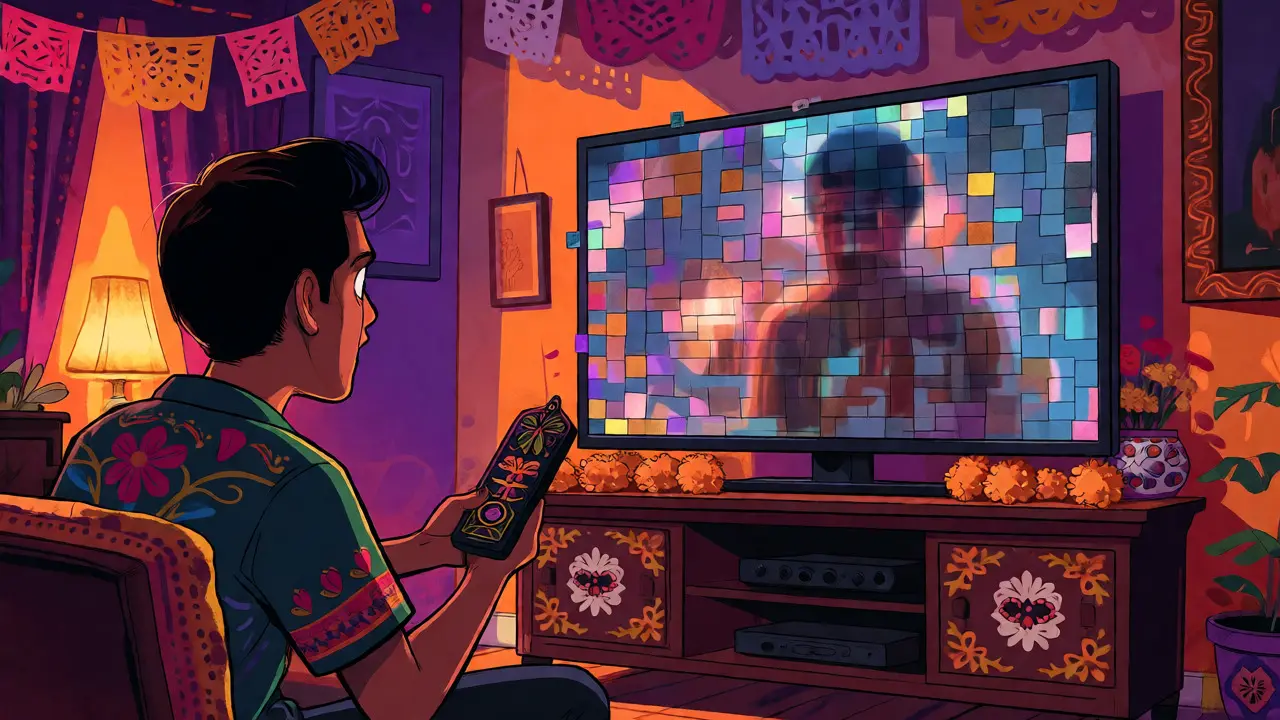
You paid for the premium plan. You bought the TV that promises "Ultra HD." You even have fiber internet fast enough to download a movie in seconds. So why does your 4K stream look like a blurry mess compared to a Blu-ray disc or a local file? It’s frustrating, and honestly, it’s not just you. The reality is that most people never actually see true 4K resolution when they hit play on Netflix, Disney+, or YouTube. The gap between what you pay for and what you see on screen isn’t magic; it’s math, bandwidth limits, and display limitations.
Let’s be clear: "4K" is just a label for pixel count (3840 x 2160). But pixels are cheap. What makes an image look sharp, vibrant, and lifelike is data density-specifically, how much information is packed into each frame. Streaming services compress video aggressively to save money on server costs and bandwidth. If your connection can’t handle the high bitrates required for uncompressed-like quality, or if your TV doesn’t know how to interpret the color data correctly, you’re watching a heavily compressed approximation of 4K, not the real thing.
The Bitrate Bottleneck: Why Resolution Isn't Everything
Think of video as a series of still images played rapidly. A 4K frame has about 8.3 million pixels. Each pixel needs to store information about its color and brightness. If you try to send all that raw data over the internet, it would clog pipes faster than you can blink. To fix this, engineers use codecs like H.265 (HEVC) or AV1 to throw away data the human eye supposedly won’t miss. This process is called compression.
Here is where things get tricky. A standard 1080p Blu-ray might run at 25-40 Mbps. A 4K UHD Blu-ray runs at 60-120 Mbps. Now, look at what major streaming services give you:
- Netflix: Up to 15 Mbps for 4K HDR content.
- Disney+: Typically 10-15 Mbps for 4K streams.
- Amazon Prime Video: Often around 10-15 Mbps, though it claims up to 25 Mbps for some titles.
- YouTube: Highly variable, often dropping below 10 Mbps unless you manually select higher resolutions or have excellent network conditions.
See the problem? Streaming services are delivering roughly one-fifth to one-tenth of the data found on physical media. When you combine low bitrate with motion-heavy scenes-like explosions, rain, or fast camera pans-the compression algorithms struggle. They create "macroblocking," those ugly square artifacts you see in dark corners or during rapid movement. Your eyes perceive this as blurriness, not because the resolution is low, but because the data integrity is compromised.
| Source Type | Typical Bitrate (Mbps) | Visual Fidelity |
|---|---|---|
| 4K UHD Blu-ray | 60 - 120 | Excellent (Near Lossless) |
| Netflix 4K HDR | 15 | Good (Compressed) |
| Disney+ 4K | 10 - 15 | Good (Variable Compression) |
| YouTube 4K | 5 - 20+ | Inconsistent |
HDR Tone Mapping: The Color Confusion
If bitrate explains the blur, High Dynamic Range (HDR) explains the washed-out colors. Most modern 4K TVs support HDR formats like HDR10, Dolby Vision, or HLG. These formats promise brighter highlights and deeper blacks. But here’s the catch: your TV panel has physical limits. A budget 4K TV might peak at 300 nits of brightness. A high-end OLED might hit 1,000+ nits.
When you stream HDR content, the signal contains metadata telling your TV, "This explosion should be 1,000 nits bright." If your TV can only do 300 nits, it has to shrink that dynamic range down to fit. This process is called Tone Mapping. Poor tone mapping results in two common issues:
Many users don’t realize their TV settings are fighting against the stream. If you haven’t enabled "HDMI Enhanced Format" or set your picture mode to "Cinema Home" or "Filmmaker Mode," your TV might be applying aggressive sharpening or oversaturation to compensate for the low-bitrate source. This creates an artificial, digital look rather than a natural cinematic one.

Your Internet Connection: Speed vs. Stability
You might have a gigabit plan, but speed tests measure peak throughput, not sustained stability. Streaming requires a consistent pipe. If your Wi-Fi fluctuates due to interference from neighbors’ routers, microwaves, or thick walls, your streaming app will automatically drop the quality to prevent buffering. This is known as Adaptive Bitrate Streaming (ABR).
Check your device’s built-in diagnostics. On Apple TV, go to Settings > Developers > Network Diagnostics. On Roku, press Info on the home screen while playing a video. You’ll likely see your actual incoming bitrate hovering far below the service’s maximum. If your 4K stream is running at 8 Mbps instead of 15 Mbps, you aren’t getting full-quality 4K. You’re getting a scaled-down version that looks soft on large screens.
Pro Tip: Use Ethernet cables whenever possible. Wi-Fi is convenient, but it introduces jitter and packet loss. Even a 5GHz Wi-Fi band can struggle with sustained 15 Mbps streams if there’s heavy household traffic. If you must use Wi-Fi, ensure your router supports QoS (Quality of Service) and prioritize your streaming device’s MAC address.
Device Limitations and Processing Power
Not all 4K devices are created equal. A smart TV’s internal processor handles decoding, scaling, and rendering simultaneously. Budget TVs often use weaker chips that struggle with complex HEVC or AV1 decoding tasks. When the chip hits its limit, it may drop frames or reduce processing quality, leading to stuttering or reduced clarity.
External streaming sticks like the Apple TV 4K or Nvidia Shield TV Pro generally offer superior hardware decoders and more robust software optimization compared to built-in Android TV or Tizen systems. They also tend to receive updates longer, ensuring better compatibility with newer codecs like AV1, which is becoming the standard for efficient 4K streaming.
Furthermore, check your HDMI cables. While "High Speed" cables are marketed for 4K, older cables might lack the bandwidth for HDCP 2.2 copy protection or stable 60Hz refresh rates. If your cable is marginal, the handshake between the player and TV might fail, forcing the system to fall back to lower resolutions or non-HDR modes without warning.
How to Actually Improve Your Viewing Experience
You can’t change the bitrate cap of Netflix, but you can optimize everything else to make the best of what you get. Here is a practical checklist to diagnose and improve your setup:
- Verify Input Source: Ensure your streaming device is plugged into an HDMI port labeled "eARC" or "4K/HDR." Some ports on older TVs are legacy 1080p only.
- Disable Artificial Enhancements: Turn off Motion Smoothing (often called TruMotion, Auto Motion Plus, etc.). This adds fake frames that make movies look like soap operas and increases blur during motion.
- Calibrate Picture Mode: Switch from "Vivid" or "Dynamic" to "Cinema," "Movie," or "Filmmaker Mode." These modes usually disable post-processing effects that degrade native detail.
- Check HDR Settings: Go into your TV’s settings and ensure "HDMI Signal Format" is set to "Enhanced" or "Standard HDR." If this is off, your TV treats HDR signals as SDR, crushing the dynamic range.
- Test with Known Content: Watch a scene specifically designed to test quality, such as the opening sequence of *Blade Runner 2049* or the space sequences in *Interstellar*. If these look muddy, your issue is likely bitrate or tone mapping.
The Future: AV1 Codecs and Higher Bitrates
The industry knows the current state is unsatisfactory. That’s why we’re seeing a shift toward the AV1 codec. Developed by the Alliance for Open Media (backed by Google, Netflix, Amazon, and others), AV1 offers about 30% better compression efficiency than HEVC. This means Netflix and YouTube can deliver higher visual quality at the same bitrate, or the same quality at lower bandwidth.
By late 2026, more devices support AV1 hardware decoding natively. If your streaming box or TV predates 2020, it might rely on software decoding for AV1, which taxes the CPU and can lead to performance hiccups. Upgrading to a device with dedicated AV1 silicon ensures you’re ready for the next generation of streaming efficiency, which aims to close the gap between broadcast and physical media quality.
Is 4K streaming worth it if I sit far away?
Yes, but less so than if you sit closer. The benefits of 4K become noticeable when the viewing distance is less than 1.5 times the diagonal screen size. For a 65-inch TV, that means sitting within 8 feet. If you sit 12 feet away, 1080p upscaled to 4K looks nearly identical to native 4K streaming because the compression artifacts are too small for your eyes to resolve.
Why does my 4K TV show "SDR" when playing HDR content?
This usually happens if your TV’s HDMI input is not configured for enhanced bandwidth. Check your TV settings for "HDMI Input Format" or "Signal Format" and switch it from "Standard" to "Enhanced" or "Extended." Also, ensure your streaming app is actually sending HDR metadata; sometimes apps default to SDR if the handshake fails.
Does a faster internet speed always improve picture quality?
No. Once you exceed the service’s maximum bitrate cap (e.g., 15 Mbps for Netflix), additional speed doesn’t improve quality. However, stability matters more than raw speed. A steady 20 Mbps connection is better for 4K streaming than a fluctuating 100 Mbps connection that drops packets frequently.
What is the difference between Dolby Vision and HDR10?
HDR10 uses static metadata, meaning the brightness instructions apply to the entire movie. Dolby Vision uses dynamic metadata, adjusting brightness and color scene-by-scene or even frame-by-frame. Dolby Vision generally provides better tone mapping on compatible displays, resulting in more accurate highlights and shadows, but it requires licensing fees and specific hardware support.
Can I force higher quality on YouTube?
On desktop browsers, you can manually select 2160p60 or higher in the settings gear icon. On smart TVs and mobile apps, YouTube often auto-selects quality based on network conditions. There is no official way to lock the bitrate on most TV apps, but using a browser-based player via a PC connected to the TV gives you more control over the playback quality.