
Most people use Roku to stream Netflix, Hulu, and YouTube-and never touch anything beyond the home screen. But hidden beneath the simple interface are powerful tools, secret menus, and advanced settings that can turn your Roku from a basic streaming box into a fully customized media hub. You don’t need to be a tech expert. These aren’t jailbreaks or risky mods. These are official features Roku built in, then buried deep. And if you’ve ever wished your Roku was faster, more responsive, or had better control over your channels, you’re about to find out why.
How to Access the Roku Secret Menu
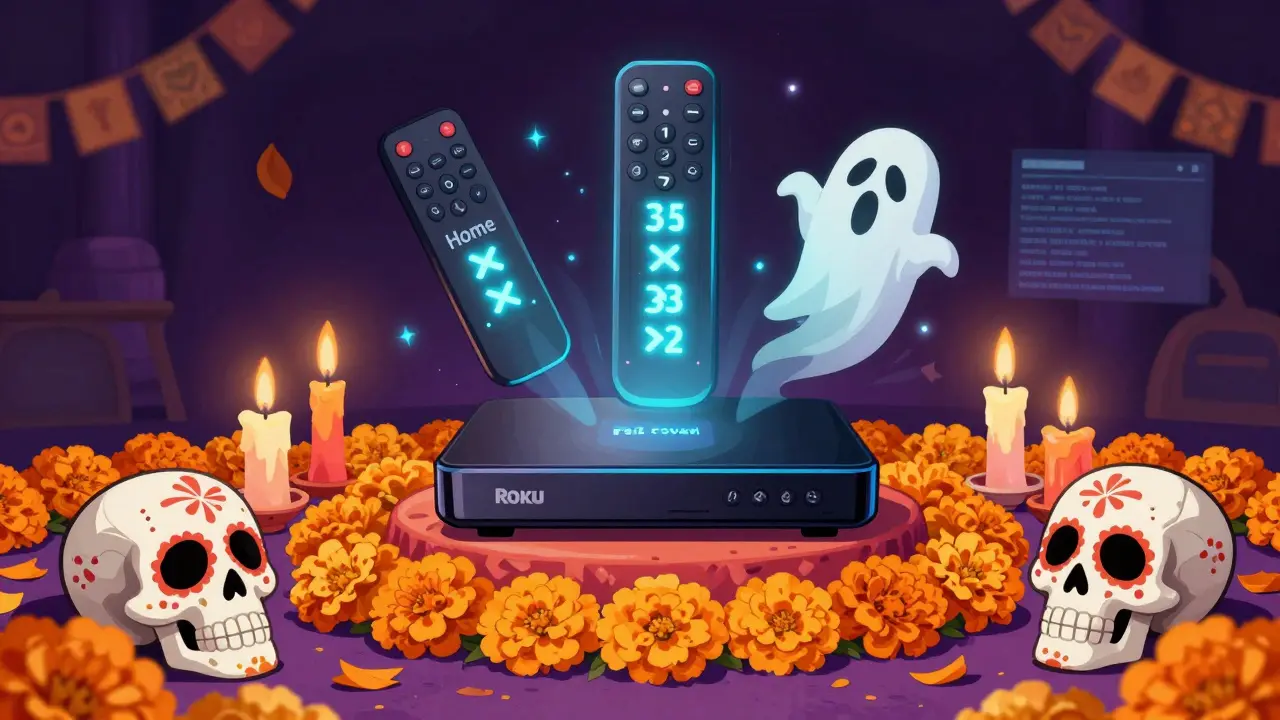
The secret menu isn’t a glitch. It’s a diagnostic and developer tool built into every Roku device since 2017. To open it, you need your remote. Press the following sequence quickly: Home five times, then Fast Forward three times, then Reverse two times. If you did it right, you’ll see a screen with a bunch of numbers and status codes. This is the Roku Debug Menu is a hidden system interface that shows real-time performance data, network stats, and firmware details. It’s not meant for everyday use, but it’s incredibly useful if you’re troubleshooting.
Don’t press anything unless you know what it does. But here’s what you can safely check:
- Network Status - Shows your actual IP address, DNS server, and signal strength. If your Wi-Fi feels slow, this tells you if it’s your router or the Roku.
- System Info - Lists your Roku model, firmware version, and memory usage. If you’re stuck on an old update, this confirms whether your device is even eligible.
- Channel List - Displays every installed channel, including ones you deleted but still linger in the system. This helps clean up clutter.
Exit by pressing the Home button. No changes are saved unless you manually tweak settings later.
Reset Your Roku Without Losing Your Channels
Many people think resetting their Roku means starting over from scratch-reinstalling every channel, re-entering passwords, losing favorite lists. That’s not true. There’s a way to clear the cache and refresh the system without touching your account or installed apps.
Go to Settings > System > Advanced System Settings > Reset. Instead of choosing Factory Reset, pick Reset to Default Settings. This wipes temporary files, clears app caches, and resets network preferences-all while keeping your Roku account logged in and your channels intact. It’s like rebooting your phone, but deeper.
This works wonders if:
- Your remote lags or skips
- Channels freeze on loading screens
- You see error code 009 (network timeout)
Do this once every few months. It’s maintenance, not a fix.
Use the Roku Mobile App Like a Pro
The Roku app on your phone isn’t just a remote. It’s a control center. Open it, tap the Remote icon, then hold down the OK button. You’ll see a hidden menu: Keyboard Settings, Voice Search, and Private Listening.
Here’s what most people miss:
- Private Listening - Plug in headphones, and audio streams directly to your phone. Perfect for late-night viewing without waking anyone. Works with Bluetooth or wired headphones.
- Voice Search - Say "Play The Crown on Netflix" and it finds it instantly. No typing. Even works if you don’t know the exact title.
- Keyboard Settings - Change the keyboard layout to QWERTY, AZERTY, or even split-screen mode for easier typing on a couch.
Also, you can use the app to send files to your Roku. Tap the Media tab, then select a photo or video from your phone. It uploads to your Roku’s internal storage and shows up under Photo Viewer or Media Player. No USB drive needed.
Customize Your Home Screen Like a Pro
You can rearrange channels, but that’s just the start. Hold down the Star button on your remote while on the home screen. This opens the Channel Management menu. Here, you can:
- Hide channels you never use (they’re still installed, just invisible)
- Pin your top 5 channels to the top row
- Reorder the entire grid by dragging
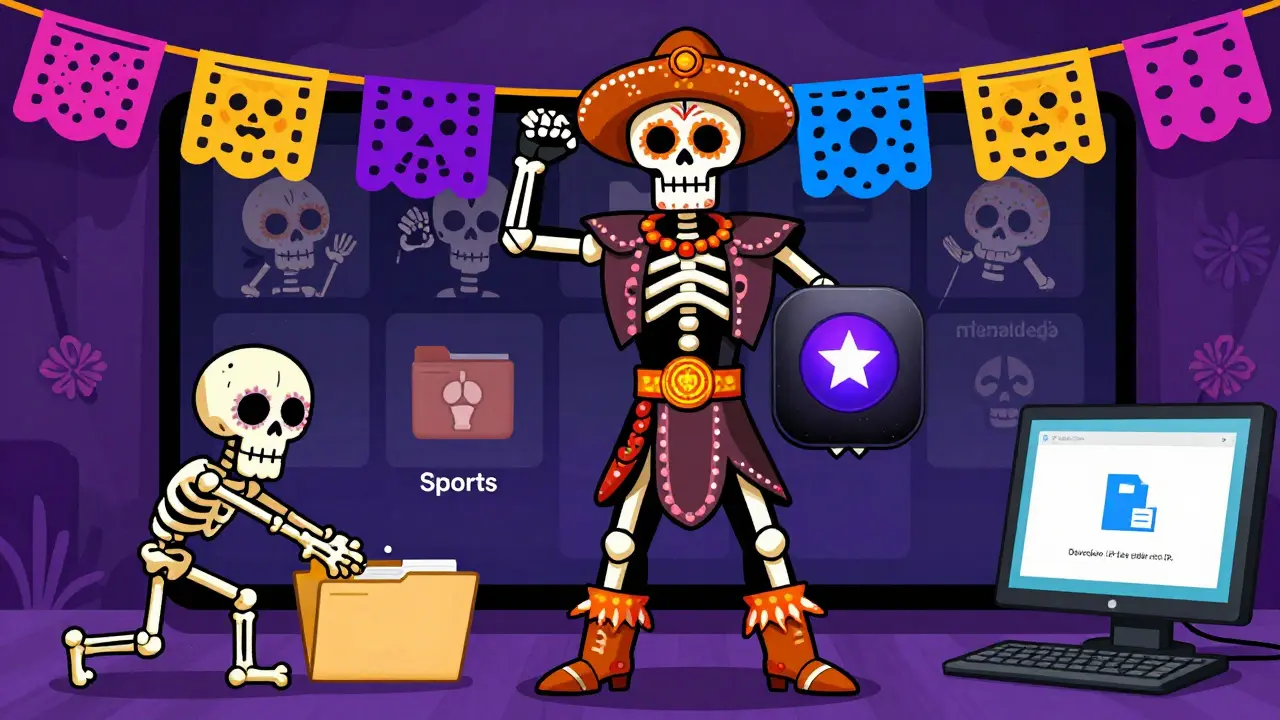
But here’s the real hack: create folders. Press Home > Settings > Channels > Manage Channels > Create Folder. Name it "Sports", "Kids", or "Documentaries". Drag any channel into it. Now you have a clean home screen with just your essentials.
Pro tip: If you have a Roku Streaming Stick+, you can hide the entire bottom row of channels. Go to Settings > Display > Home Screen Layout > Hide Bottom Row. It gives you more space and reduces clutter.
Enable Developer Mode (And Why You Should)
Developer Mode lets you sideload apps from outside the Roku Channel Store. Think of it like installing APKs on Android. It’s not for everyone, but if you want to test beta apps, run private streaming servers, or install niche tools like Stremio is a third-party media aggregator that works on Roku via sideloading, this is how.
To turn it on:
- Go to Settings > System > Developer Options
- Toggle Developer Mode to ON
- Note the IP address displayed
Now, on your computer, open a browser and go to http://[your-roku-ip]:8060. You’ll see a web interface where you can upload .zip files of apps. The most common use? Installing LocalCast or PlayOn to stream videos from your home network.
Warning: Sideloading isn’t supported by Roku. Apps can break after updates. But if you’re tech-curious, it’s worth trying.
Speed Up Your Roku With These Settings
Older Roku models feel sluggish. That’s not just aging hardware-it’s default settings. Here’s how to fix it:
- Turn off automatic updates - Go to Settings > System > System Update > Update Options > Manual. Letting Roku update in the background slows it down. Update manually when you’re ready.
- Disable screen saver - Settings > Screen Saver > Off. The screensaver uses processing power even when idle.
- Reduce video quality - If you have a slow internet connection, set all channels to 720p. Go to Settings > Display > Video Mode > 720p. Less buffering, faster load times.
- Clear channel cache - Go to Settings > System > Advanced System Settings > Clear Cache. Do this monthly.
One user reported a 40% improvement in startup time after applying all four. No hardware upgrade needed.
Use the Roku Remote Like a Power User
That tiny remote has hidden buttons. The Star button isn’t just for favorites. Hold it down for 3 seconds to open Quick Access-a menu with your last 5 watched channels. Tap one to jump right back in.
Press and hold the Play/Pause button for 2 seconds to skip ahead 30 seconds in most apps. It works on Netflix, Hulu, and YouTube. No more fumbling for the fast-forward icon.
And if you have a Roku Voice Remote Pro, the microphone button can be programmed. Go to Settings > Remote > Programmable Buttons. Assign it to launch a specific channel like Disney+ or ESPN.
What Most People Don’t Know About Roku Channels
You can install channels that aren’t in the official store. How? Use a web browser on your phone or computer.
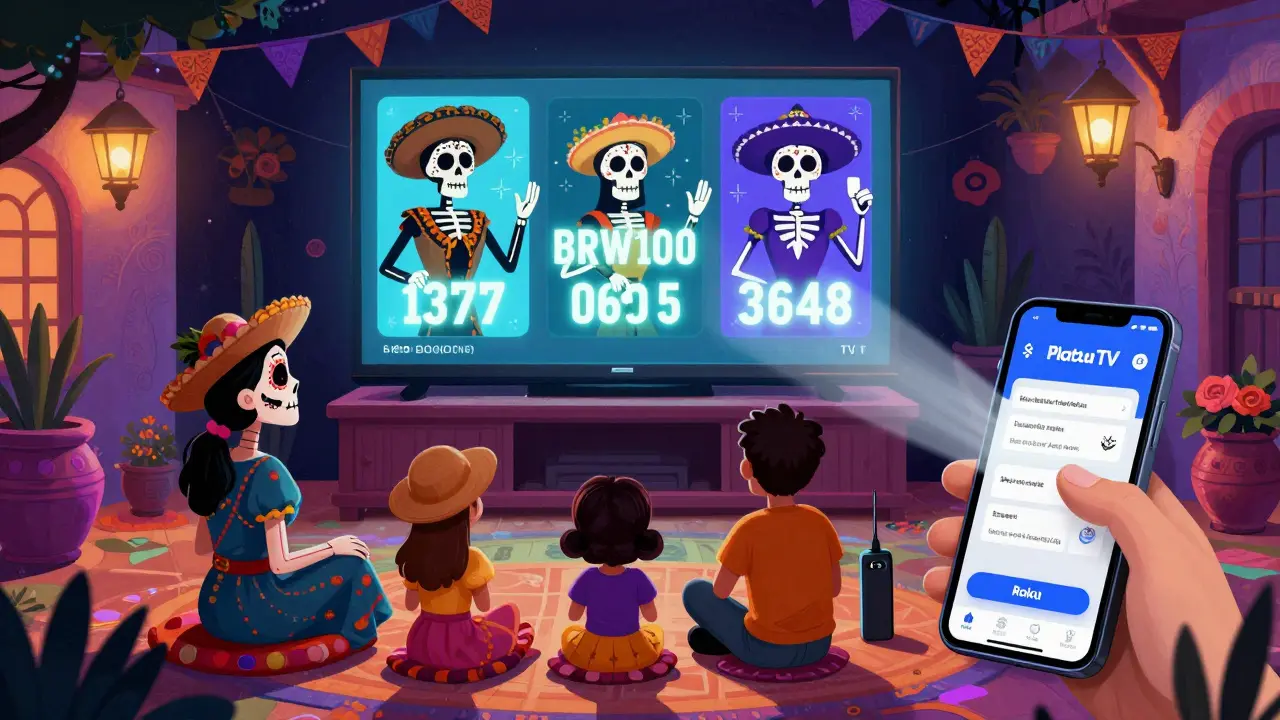
Go to https://my.roku.com/link on any device. Log in with your Roku account. Then, type in a channel code-like BRW100 for Bloomberg TV or 1377 for Pluto TV. The channel installs automatically on your Roku. No remote needed.
Some lesser-known channels you might not know:
- Channel 1377 - Pluto TV (free live TV with 100+ channels)
- BRW100 - Bloomberg TV (real-time financial news)
- 3648 - The Weather Channel (live radar, forecasts)
- 3772 - Tastemade (cooking and travel shows)
These are official Roku channels. Not third-party. Just buried.
Final Thoughts: Your Roku Is More Powerful Than You Think
You bought a Roku because it was simple. But simplicity doesn’t mean limitation. Behind the clean interface is a flexible, powerful platform. The secret menus aren’t Easter eggs-they’re tools. Tools for troubleshooting, customization, and control.
Start with the Debug Menu. Try the cache reset. Use the mobile app to skip ads or listen privately. Hide the clutter. Enable Developer Mode if you’re curious. These aren’t tricks. They’re features Roku assumes you’ll never find.
And if you do? You’ll wonder how you ever lived without them.
How do I access the Roku secret menu?
Press Home five times, then Fast Forward three times, then Reverse two times on your Roku remote. This opens the Debug Menu, which shows system info, network status, and installed channels. Don’t change anything unless you know what it does.
Can I reset my Roku without losing my channels?
Yes. Go to Settings > System > Advanced System Settings > Reset, then choose "Reset to Default Settings." This clears caches and network settings but keeps your account logged in and all channels installed. It’s not a factory reset.
How do I sideload apps on Roku?
Enable Developer Mode in Settings > System > Developer Options. Note your Roku’s IP address. On a computer, go to http://[your-roku-ip]:8060 and upload a .zip file of the app. This lets you install unofficial channels like Stremio or LocalCast. Use at your own risk.
Can I use my phone to control Roku without the remote?
Yes. Download the Roku app on your iPhone or Android. It works as a full remote, lets you use private listening with headphones, and even lets you send photos or videos from your phone to your Roku’s media player.
Why is my Roku slow all of a sudden?
It’s probably cache buildup or background updates. Try clearing the cache (Settings > System > Advanced System Settings > Clear Cache), disable automatic updates, and turn off the screen saver. For older models, lowering video mode to 720p can also help.
Are there hidden channels I can install without the app store?
Yes. Go to https://my.roku.com/link on a computer, log in, and enter channel codes like 1377 (Pluto TV), BRW100 (Bloomberg), or 3648 (The Weather Channel). They install directly to your Roku without needing to search the store.
