
Amazon Prime Video lets you stream movies and shows to multiple people at once - but only if you set up separate profiles. Without them, everyone in your household gets the same recommendations, the same watch history, and the same weird suggestion to watch a documentary about tractor repair after you binge Stranger Things. Setting up profiles isn’t just convenient - it’s necessary if you want Prime Video to actually work for you.
Why You Need Multiple Profiles
Prime Video doesn’t just remember what you watched - it remembers everything. Your kids’ cartoon binges, your partner’s true crime obsession, your midnight rom-com marathons - they all mix together into one chaotic feed. The algorithm starts suggesting shows based on the most popular viewing habits in your household, not yours. You end up with a homepage full of preschool shows when you just want to watch The Last of Us.
Each profile acts like its own personal account. It keeps watch history, recommendations, and even parental controls separate. That means your 7-year-old can watch Bluey all day without affecting your watchlist. Your partner can follow their favorite K-dramas without seeing your action movie queue. It’s not just about privacy - it’s about relevance.
Amazon allows up to six profiles per Prime account. That’s enough for a full household: two adults, two kids, one senior, and one guest profile for visitors. You can even set up a profile for your roommate if you’re sharing the subscription.
How to Create a New Prime Video Profile
Creating a profile takes less than a minute. Here’s how:
- Open the Prime Video app on your TV, smartphone, or tablet - or go to primevideo.com in your browser.
- Click on your profile icon in the top-right corner (it looks like a person or your initials).
- Select Manage Profiles.
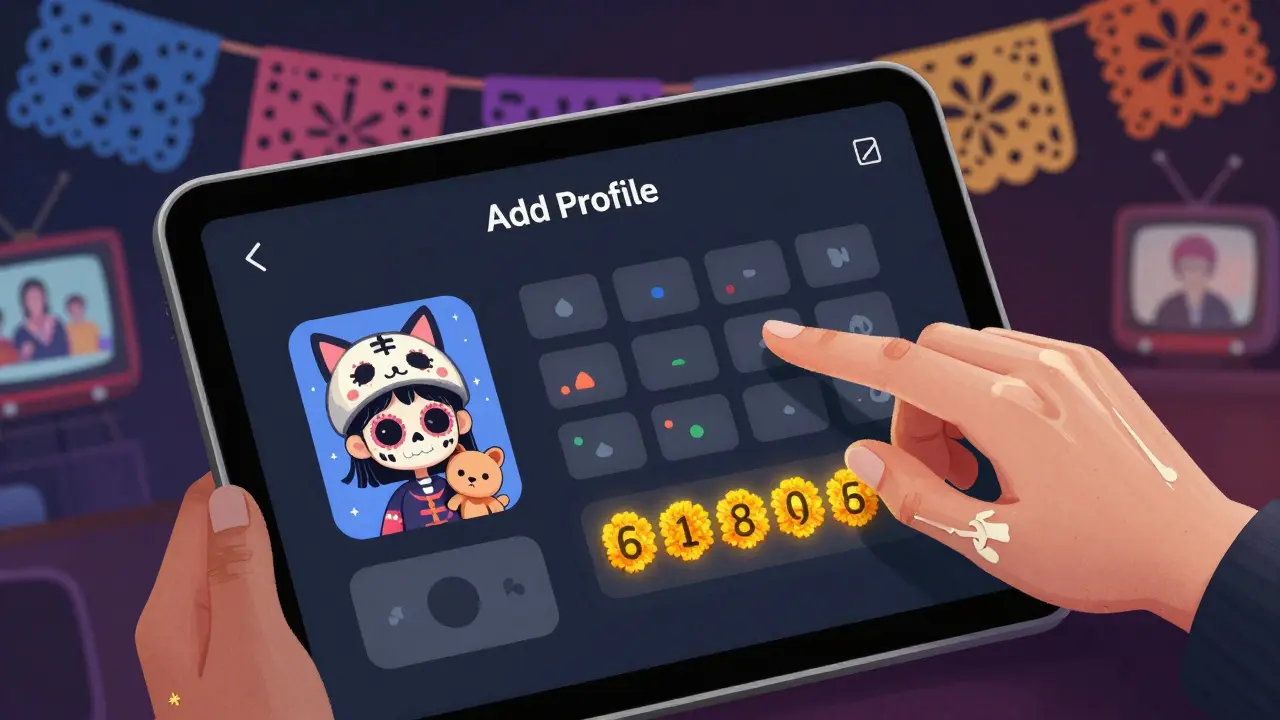
- Click Add Profile.
- Type in a name for the profile - like "Sarah" or "Kids" - and choose an avatar. You can pick from pre-made icons or upload a photo.
- Toggle on Allow profile to access adult content if this is for an adult. Leave it off for kids.
- Click Save.
That’s it. The new profile shows up instantly on all devices linked to your Prime account. No need to log out or reinstall anything.
Managing Profiles: Edit, Delete, or Restrict
Once profiles are set up, you can tweak them anytime. Go back to Manage Profiles and you’ll see each one with three options:
- Edit - Change the name or avatar. Useful if your kid outgrows their cartoon character and wants a TikTok influencer instead.
- Delete - Remove a profile permanently. This also clears all watch history and recommendations tied to it. You can’t undo this.
- Parental Controls - Tap this if it’s a child’s profile. You can set content ratings (like PG-13 or below), block specific titles, or require a PIN to watch anything above the limit.
Parental controls are especially handy if you have young kids. You can lock out anything with a TV-14 rating or higher. If someone tries to watch an R-rated movie, they’ll need to enter the PIN you set. No more accidental horror movie surprises at 8 p.m.
Sharing Prime Video with Others
You might be wondering: can I share my Prime Video profile with someone outside my household? Technically, yes - but not the way you think.
Prime Video profiles are tied to your Amazon account. Anyone who uses your profile can stream content, but they’ll need to sign in using your Amazon login. That means they’ll have access to your entire Prime benefits - not just video. That includes free shipping, Prime Music, and even your order history.
That’s why Amazon doesn’t let you create guest profiles or temporary logins. If you want someone to watch without giving them full access to your account, the safest option is to create a separate profile with strict parental controls and no access to your personal watch history.
Some people try to share login details with friends or roommates. But if you’re sharing your password, you’re also sharing your purchase history, your saved payment methods, and your ability to change billing settings. Not worth the risk.
Profile-Specific Features You Might Miss
Each profile gets its own personalized experience:
- Watchlist - Every profile has its own list of shows you want to watch. No clutter.
- Continue Watching - Your progress on a show stays with your profile. No one else’s pause point messes with your binge.
- Recommendations - The algorithm learns your taste. If you like sci-fi, you’ll get more sci-fi. If you hate reality TV, you’ll stop seeing it.
- Downloaded Shows - If you download content for offline viewing, it’s stored separately per profile. Your downloads won’t show up on your kid’s tablet.
There’s also a neat trick: if you have a profile set up for "Guest," you can let friends use it without giving them your password. Just hand them your tablet or Fire TV stick, let them switch to the Guest profile, and they can watch what they want - without touching your stuff.
What Happens When You Delete a Profile?
Deleting a profile isn’t like turning off a light. It’s permanent. All of the following disappear:
- Watch history
- Watchlist
- Resume points for partially watched shows
- Custom recommendations
- Downloaded content tied to that profile
There’s no recycle bin. No way to restore it. If you delete your profile by accident, you’ll have to rebuild your watchlist from scratch. That’s why it’s smart to rename profiles instead of deleting them - like changing "John" to "John (Archived)" if they’re no longer using the account.
Common Mistakes to Avoid
Here are a few things people mess up:
- Using the same profile for everyone - This is the #1 mistake. You’ll end up with recommendations that make no sense.
- Forgetting to set parental controls - Kids can accidentally stumble into mature content if you don’t lock it down.
- Sharing passwords instead of profiles - It’s easier, but way riskier. Amazon doesn’t support shared logins for security reasons.
- Not updating avatars - If your profile icon says "Child 1," you’ll have a hard time remembering who’s who on the TV.
Pro tip: Name profiles after people, not roles. "Mom," "Dad," "Kid" - these get confusing over time. Use real names. It’s clearer and easier to switch between.
What About Multiple Devices?
You can stream on up to three devices at once with one Prime account. But each device can only show one profile at a time. So if your partner is watching on the living room TV and your kid is watching on their tablet, that’s two streams. You can still watch on your phone - that’s the third.
As long as each person is signed into their own profile, there’s no conflict. The system tracks streams per profile, not per device. So if you’re both watching different shows on different TVs, that’s fine. But if you try to start a fourth stream, Prime Video will ask you to stop one.
There’s no extra fee for streaming on multiple devices. It’s built into the Prime membership. Just make sure everyone’s using the right profile.
Final Tips for Families and Roommates
If you live with others, here’s how to make Prime Video work smoothly:
- Create a profile for every regular user - even if they only watch once a month.
- Use clear, personal names and avatars. No "Profile 3." That’s asking for trouble.
- Set parental controls on every kid’s profile. Even if they’re teens.
- Use the Guest profile for visitors. It keeps your stuff private.
- Review profiles every few months. Delete ones that aren’t used anymore.
Prime Video is one of the most popular streaming services in the world - and for good reason. But its real power comes from personalization. Without profiles, you’re just sharing a TV with strangers. With them, you’ve got a personalized entertainment hub that adapts to everyone in your home.
Can I have more than six profiles on my Prime Video account?
No. Amazon limits Prime Video accounts to six profiles total. This includes all adult, child, and guest profiles. If you need more, you’d have to create a second Amazon account - but that means paying for another Prime membership. There’s no official way to bypass this limit.
Do all profiles get the same movies and shows?
Yes, they all have access to the same library of content. The difference is in recommendations, watch history, and personalized lists. A profile for a child won’t see R-rated films unless parental controls block them. But the full catalog is available to every profile - it’s just filtered based on settings and viewing habits.
Can I use Prime Video profiles on different devices?
Yes. Profiles sync across all devices linked to your Amazon account - Fire TV, smartphones, tablets, laptops, and smart TVs. When you switch to a profile on one device, it stays active on all others. You don’t need to log in again.
What happens if I delete my profile by accident?
If you delete a profile, everything tied to it - watch history, recommendations, and downloaded content - is gone forever. There’s no undo button. That’s why it’s better to rename unused profiles (like "John - Archived") instead of deleting them.
Can I share my Prime Video profile with a friend who lives elsewhere?
Technically yes - if they sign in using your Amazon login. But that gives them access to your entire Prime account: shipping, music, purchases. It’s not safe. Instead, create a separate profile with parental controls and let them use it. They won’t see your personal data, and you won’t risk your account security.
