
You just spent a fortune on a high-end projector and a 120-inch screen, but when you fire up a 4K stream, the image looks dim, muddy, or strangely gray. It is a common headache. Most people assume their projector isn't powerful enough, but the reality is usually a mismatch between the streaming signal and the projector's internal processing. Getting Projector HDR settings right isn't about cranking every slider to 100; it's about managing how the hardware interprets light and shadow to stop that annoying "dimming" effect.
The Quick Fix Guide for HDR Brightness
Before digging into deep menus, try these immediate adjustments to get the most light out of your setup:
- Disable "Eco Mode": Most projectors ship with a power-saving mode that kills 20-30% of your lumen output. Switch to "Standard" or "Dynamic" for HDR content.
- Match the HDR Format: If your source is HDR10 a static high dynamic range standard that sets one brightness level for the entire movie, ensure your projector isn't trying to force it into a different mode.
- Check the HDMI Cable: You need a "High Speed" or "Ultra High Speed" cable. If the cable can't handle the bandwidth, the projector might fallback to a lower-brightness SDR mode without telling you.
Why HDR Often Looks Dimmer Than SDR
It sounds crazy, but a 4K HDR image can actually look darker than a standard 1080p image. This happens because HDR is designed to create contrast, not overall brightness. In a standard image, the whole screen is bright. In HDR, only the highlights (like a flashlight or the sun) are incredibly bright, while the shadows stay deep.
When you stream via Netflix a global streaming service that uses Dolby Vision and HDR10 for its 4K catalog or Disney+, the projector has to map those extreme brightness values to its own maximum capability. If your projector only puts out 2,000 lumens but the movie was mastered for 4,000 nits, the projector "squashes" the image, often making the mid-tones look too dark. This is called tone mapping.
Mastering Tone Mapping and Brightness
To fix the dimness, you need to find the "Tone Mapping" or "HDR Mapping" setting in your projector menu. This is the brain of the operation. It decides how to translate the HDR signal into something your specific lamp or LED can actually project.
If your image feels too dark, look for a setting called "Dynamic Tone Mapping" (DTM). When enabled, the projector analyzes the scene in real-time and boosts the brightness of the darker areas. This is a lifesaver for rooms that aren't completely pitch black. However, if you notice the brightness shifting constantly in a way that feels unnatural, try switching to "Static" mapping and manually adjusting the gamma.
| Format | Brightness Logic | Best For... | Common Issue |
|---|---|---|---|
| HDR10 | Static Metadata | Standard 4K Blu-rays | Can look dim in bright rooms |
| Dolby Vision | Dynamic Metadata | High-end Streaming | Hardware compatibility varies |
| HLG | Hybrid Log-Gamma | Live Broadcasts | Lacks the punch of cinema HDR |
The Role of the Screen in Perceived Brightness
You can have the most expensive projector in the world, but if you're projecting onto a matte white wall, you're losing a huge amount of light. This is where ALR Screens Ambient Light Rejecting screens designed to reflect light back to the viewer while absorbing outside light come into play. If you struggle with HDR brightness during the day, an ALR screen can effectively double your perceived brightness without changing a single setting.
For those using a standard white screen, check your "Gain" value. A screen with a gain of 1.1 or 1.2 reflects more light than a 1.0 screen, making HDR highlights pop more. Just be careful-too much gain can cause "hot spotting," where you see a bright glow in the center of the image.
Fine-Tuning Your Streaming Device
Your projector isn't the only thing that matters; your Streaming Media Player devices like Apple TV 4K or NVIDIA Shield that decode HDR signals is the source. If you use an Apple TV 4K, for example, go into the Video and Audio settings and check the "Match Content" options. Enabling "Match Dynamic Range" ensures the player sends the exact HDR signal the movie needs, rather than forcing everything into a generic HDR mode.
A common mistake is leaving the streaming box on "Automatic." This often results in the box sending an HDR signal when the projector is in SDR mode, leading to a washed-out, gray-looking image. Always ensure the "Handshake" between the device and the projector is locked into HDR.
Avoid These Common HDR Mistakes
Many users try to fix brightness by cranking up the "Brightness" slider. In projector terms, the Brightness setting usually controls the black level, not the overall light output. If you push this too high, you aren't making the image brighter; you're just turning your blacks into gray, which kills the contrast and makes the HDR effect disappear.
Instead, use the "Contrast" or "Backlight/Lamp Power" settings to increase the actual light output. If your projector has a "Cinema" or "Movie" preset, it will likely be dimmer because it's aiming for accuracy. If you're streaming in a living room with some light, switch to a "Vivid" or "Standard" preset and then pull back the saturation so colors don't look nuclear.
Why does my HDR stream look gray or washed out?
This is usually caused by an HDR/SDR mismatch. Either your streaming device is sending an HDR signal that the projector isn't processing correctly, or your "Black Level" (often labeled as Brightness) is set too high. Try resetting your image settings to default and ensuring "HDR Mode" is explicitly enabled in the projector menu.
Should I use Dolby Vision or HDR10 for the best brightness?
Dolby Vision is generally superior because it uses dynamic metadata. This means it tells the projector exactly how bright each specific scene should be. HDR10 uses a single setting for the whole movie, which can lead to some scenes feeling too dim. If your projector supports Dolby Vision, always choose it over HDR10.
Does 4K resolution affect HDR brightness?
Resolution (the number of pixels) and HDR (the range of light and color) are separate. You can have 1080p HDR or 4K SDR. However, most high-brightness HDR content is delivered in 4K. Increasing resolution won't make the image brighter, but it will make the HDR highlights look sharper and more defined.
Will changing the lamp mode affect my projector's lifespan?
Yes. Using "Dynamic" or "High Power" modes increases brightness but generates more heat and wears out the lamp faster. To balance this, use high-power modes only for HDR movies and switch back to "Eco" or "Standard" for casual TV viewing or gaming.
What is the best gamma setting for HDR streaming?
For most HDR content, a gamma of 2.2 or 2.4 is standard. If the image feels too dark in the shadows (crushed blacks), try lowering the gamma slightly (e.g., to 2.0 or 1.8). This will lift the shadows and make the image appear brighter, though you may lose some cinematic depth.
Next Steps for Your Home Cinema
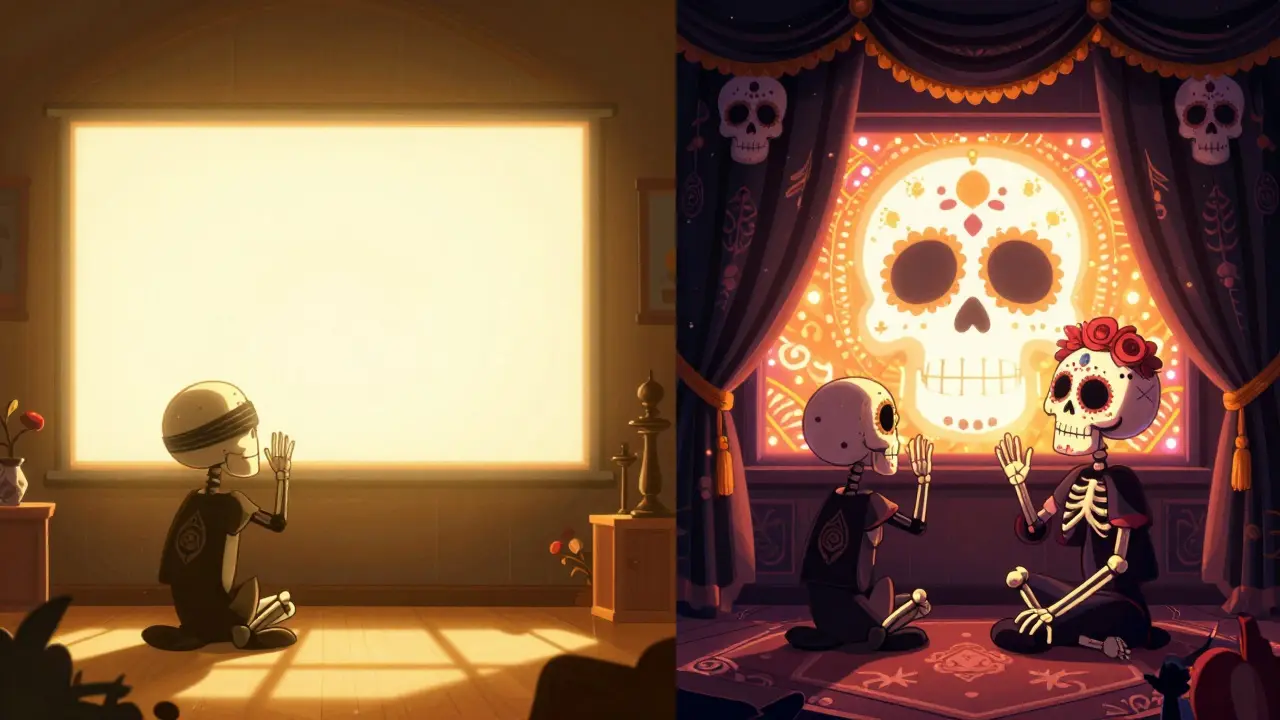
If you've tweaked all your settings and the image is still too dim, consider your environment. The biggest enemy of HDR is ambient light. Even a small amount of light from a hallway or a window can wash out the contrast that HDR works so hard to create. Try adding blackout curtains to your room; the difference in perceived brightness is often more dramatic than any setting change.
For those who want absolute precision, consider using a calibration disc or a professional calibration tool. This allows you to set the peak brightness (nits) of your projector to match the content, ensuring that the brightest whites are dazzling without blowing out the details in the clouds or snow.
