
There is a distinct feeling when you hit the "Go Live" button on LinkedIn Live is a professional video broadcasting tool that allows users to stream real-time video directly to their network. It’s not quite the casual chaos of TikTok, nor is it the polished production value of a corporate TV broadcast. It sits somewhere in between-a space where authenticity meets career ambition. If you are looking to build authority, connect with your audience, or launch a product without a massive budget, this platform offers a unique advantage. The key isn't just turning on the camera; it's treating the stream like a professional event.
Many professionals hesitate because they fear technical glitches or awkward silences. That hesitation is normal, but it shouldn't stop you. With the right preparation and a clear understanding of how the platform works, you can turn a simple webcam session into a powerful engagement tool. This guide will walk you through everything from setting up your hardware to engaging viewers in real-time.
Understanding the Platform and Its Audience
Before you worry about ring lights and microphones, you need to understand who is watching. Unlike other social platforms where algorithms push content to strangers, LinkedIn is a professional networking site focused on business connections and career development. Your audience here expects value, expertise, and professionalism. They are likely colleagues, potential clients, industry peers, or recruiters. This changes the tone of your stream significantly. You aren't trying to go viral with a dance challenge; you are trying to start a conversation about industry trends, share insights, or showcase your company culture.
The algorithm on LinkedIn favors content that keeps people on the platform. Live videos trigger notifications to your connections, which means you have a built-in initial audience. However, once the stream starts, the algorithm looks at engagement metrics-comments, shares, and watch time-to decide if it should show your stream to a broader network. This means your first five minutes are critical. You need to hook viewers immediately with a clear statement of what they will gain by staying.
Technical Setup: Hardware and Software Essentials
You don't need a Hollywood studio to look professional, but you do need reliable equipment. Poor audio is the number one reason viewers click away. If your video is slightly grainy, people will forgive it. If your audio sounds like you're speaking from inside a tin can, they won't. Start by investing in a decent USB microphone. A lavalier mic clipped to your shirt or a desktop condenser mic will make a world of difference compared to your laptop's built-in microphone.
For video, your smartphone often outperforms most webcams. Using your phone as a webcam via apps like Camo is software that turns your smartphone into a high-quality webcam for your computer. or EpocCam is an application that enables iOS devices to function as external webcams. can provide superior image quality. Ensure your lens is clean and position the camera at eye level. Looking down at a laptop screen creates an unflattering angle that makes you appear less confident.
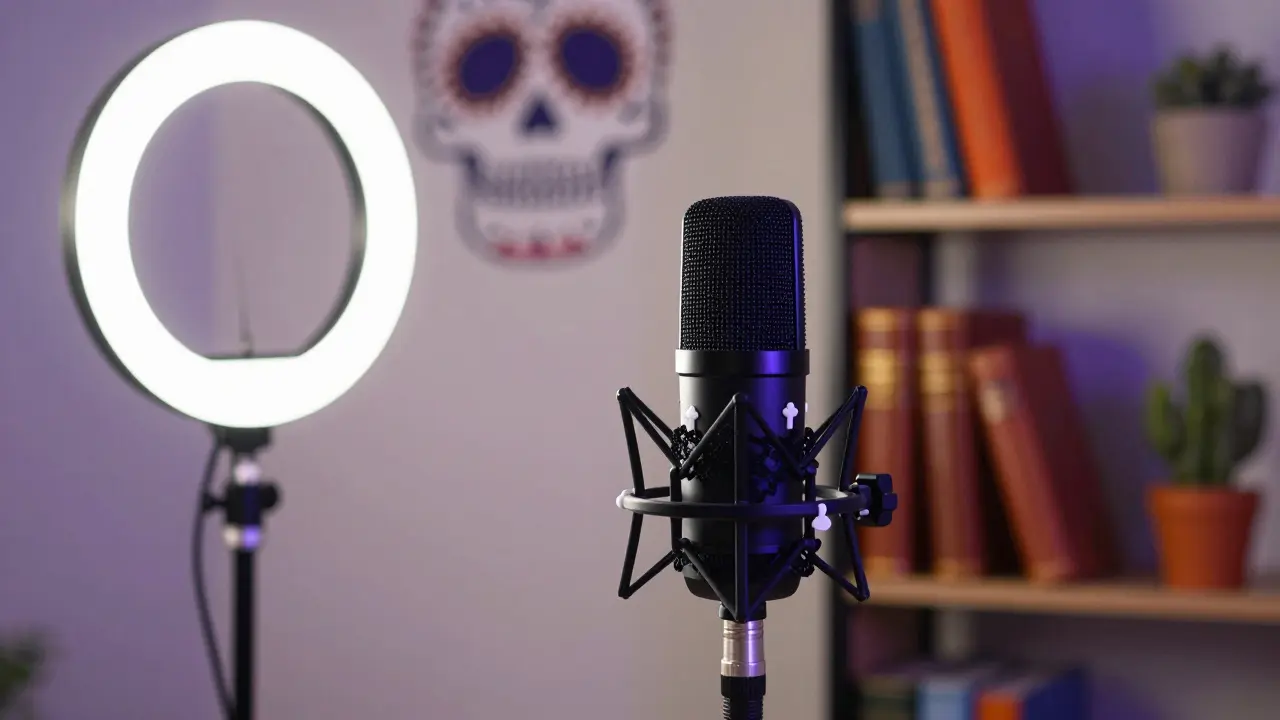
Lighting is the third pillar of production quality. Natural light from a window is great, but it's inconsistent. A simple ring light or softbox placed in front of you eliminates harsh shadows and ensures your face is clearly visible. Remember, the background matters too. Keep it tidy and neutral. A messy desk distracts from your message. If your environment is chaotic, use a virtual background or blur effect, though a real, clean background always feels more authentic.
| Component | Minimum Requirement | Pro Recommendation |
|---|---|---|
| Audio | Built-in Laptop Mic | USB Condenser Mic (e.g., Blue Yeti) |
| Video | 720p Webcam | Smartphone via Camo/EpocCam |
| Lighting | Window Light | Ring Light or Softbox |
| Internet | Wi-Fi | Ethernet Connection |
Choosing the Right Broadcasting Tool
LinkedIn does not allow you to go live directly from its mobile app in all regions, and the desktop interface has limitations. To get the best control over your stream, you will likely need third-party software. OBS Studio is free, open-source software for video recording and live streaming. is the industry standard for many creators. It allows you to add overlays, switch between scenes, and display graphics. However, OBS has a learning curve. If you prefer something simpler, StreamYard is a browser-based live streaming platform that simplifies production. or Restream.io is a service that allows simultaneous streaming to multiple platforms. are excellent alternatives. They offer user-friendly interfaces and built-in branding options.
To connect these tools to LinkedIn, you need a Stream Key. LinkedIn provides this key in the "Create Event" section of your profile or page. You copy this key and paste it into your broadcasting software. Always test this connection before going live. A dry run helps you identify issues with audio levels, video framing, and internet stability. Treat this test like a rehearsal. Check your sound, check your picture, and ensure your slides or graphics appear correctly.
Content Strategy: What to Talk About
A common mistake is going live without a clear topic. "Just chatting" rarely works on LinkedIn. Your audience needs a reason to tune in. Choose topics that demonstrate your expertise or provide immediate value. Consider hosting Q&A sessions, interviewing industry experts, breaking down complex news stories, or sharing behind-the-scenes looks at your work process. The goal is to educate or inspire.
Plan your content structure. Have a beginning, middle, and end. Start with a strong hook that states the problem you will solve. In the middle, deliver your core insights with specific examples. End with a clear call to action, such as asking viewers to comment with their own experiences or follow your page for more tips. Keep your streams concise. Ten to fifteen minutes is often enough to deliver value without losing attention. Longer streams require higher production value and more dynamic content to keep viewers engaged.
Engagement and Interaction During the Stream
Live streaming is a two-way conversation. If you ignore the chat, you miss the biggest benefit of the medium. Assign a moderator if possible, or dedicate part of your attention to reading comments. Acknowledge viewers by name. "Thanks for joining, Sarah!" or "Great question, Mike." This personal touch builds community and encourages others to participate. If you can't read every comment, ask your moderator to highlight the best ones for you to address.
Encourage interaction early. Ask a simple question to get the ball rolling. "Where are you tuning in from?" or "What's your biggest challenge with [topic]?" These low-barrier questions help break the ice. As the stream progresses, ask deeper questions that spark debate or discussion. The more comments you generate, the more LinkedIn's algorithm will promote your stream to new audiences. Don't be afraid of silence either. Pausing briefly while you think shows confidence and gives viewers time to process your points.
Promotion and Post-Stream Optimization
Going live without promotion is like throwing a party and not sending invitations. Announce your stream at least 24 hours in advance. Create a post with a catchy headline, a clear date and time, and a brief description of what viewers will learn. Use relevant hashtags to increase discoverability. Remind your audience again one hour before the stream goes live. Send direct messages to close connections or clients who might find the topic valuable.
After the stream ends, the content doesn't have to disappear. LinkedIn automatically saves your live video to your profile or page. Download the recording and edit it into shorter clips for repurposing. Share key quotes or moments as text posts with links back to the full video. This extends the life of your content and reaches people who missed the live event. Analyze the performance metrics afterward. Look at peak viewer counts, total views, and engagement rates. Use this data to refine your next stream. Did certain topics resonate more? Was there a drop-off at a specific time? These insights are gold for improving your strategy.
Can I go live on LinkedIn from my phone?
Directly going live from the LinkedIn mobile app is limited and not available in all regions. For a better experience, use your phone as a webcam connected to a computer running broadcasting software like OBS Studio or StreamYard. This setup provides higher quality and more control over your stream.
How long should a LinkedIn Live stream last?
Aim for 10 to 20 minutes. This duration is long enough to provide substantial value but short enough to maintain viewer attention. Longer streams require more dynamic content and higher production quality to keep audiences engaged throughout.
Do I need expensive equipment to start?
No, you can start with basic equipment. A smartphone, good natural lighting, and a quiet room are sufficient for beginners. Invest in a dedicated microphone and lighting as you grow. Audio quality is more important than video resolution for retaining viewers.
What happens if my internet disconnects during the stream?
If your internet drops, the stream may pause or end abruptly. Viewers will see a buffering icon or an error message. Always use a wired ethernet connection instead of Wi-Fi for stability. If a disconnection occurs, apologize briefly when you return and continue with your planned content.
Can I monetize LinkedIn Live streams?
LinkedIn does not have a direct monetization feature for live streams like YouTube's Super Chat. However, you can indirectly monetize by promoting products, services, or consulting opportunities. Use the stream to build trust and authority, which leads to business inquiries and sales.
