
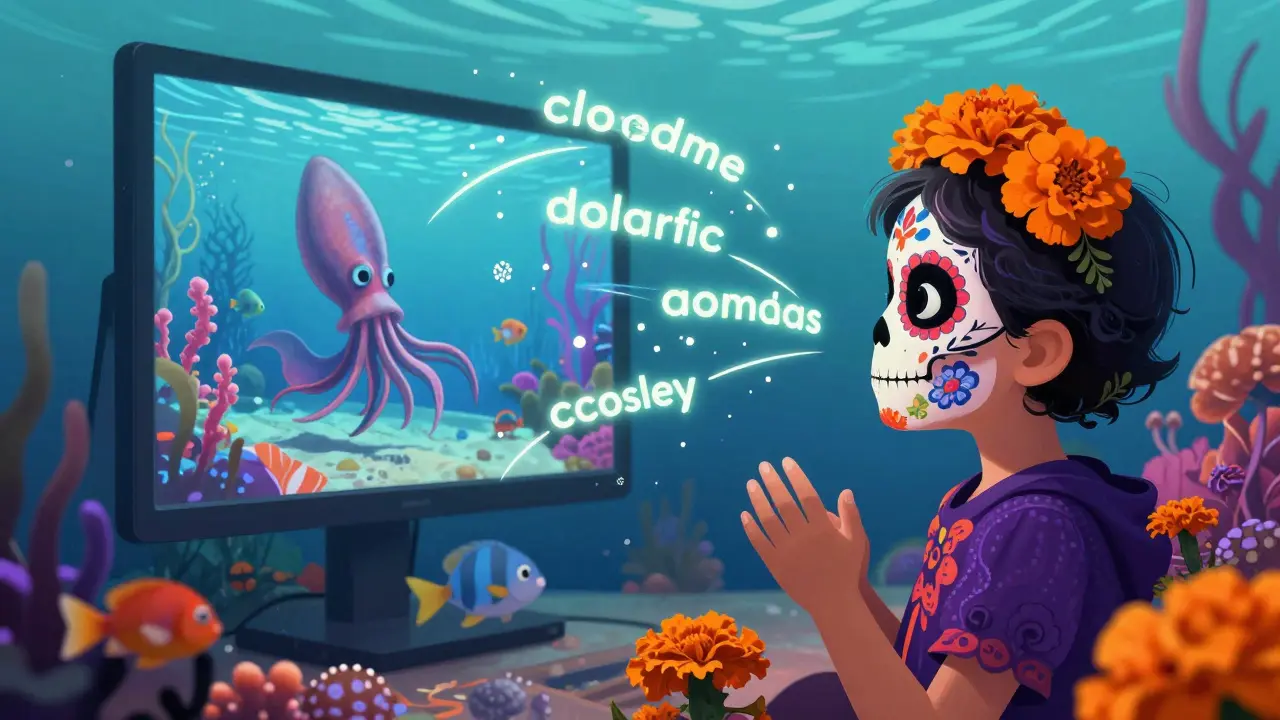
Imagine your child is watching a science documentary about the deep ocean, but the narrator's voice is drowned out by a loud air conditioner or a noisy sibling. Or perhaps you have a child with a visual impairment who can hear the crashing waves but has no idea that a giant squid just appeared on screen. These aren't just minor inconveniences; they are barriers to learning. When we talk about accessibility for kids, we aren't just talking about wheelchairs or ramps. We are talking about digital tools that ensure every child, regardless of how they process information, can engage with educational content.
Quick Wins for Inclusive Viewing
- Enable Closed Captions (CC) to boost literacy and reading speed.
- Turn on Audio Descriptions for children with visual impairments to provide narrative context.
- Use parental control settings to lock in accessibility preferences across all profiles.
- Pair audio and visual cues to help neurodivergent children stay focused.
The Literacy Secret Weapon: Closed Captions
Most people think of captions as a tool for the deaf or hard of hearing. While that is their primary purpose, they are actually a powerhouse for early childhood education. Closed Captions is a text version of the spoken dialogue and sound effects that can be toggled on or off during a video. Commonly abbreviated as CC, these captions provide a visual anchor for the words being spoken.
When a child reads the words while hearing them, they are practicing a process called multimodal learning. If a kid is watching a video about the solar system and sees the word "Atmosphere" appear on the screen exactly as the narrator says it, the connection between the sound and the written word is forged instantly. This is why many parents in Auckland and around the world are now leaving captions on even for children who can hear perfectly. It turns every video into a reading lesson.
Painting Pictures with Sound: Audio Descriptions
For a child who is blind or has low vision, a movie can feel like a puzzle with missing pieces. They hear the music and the talking, but the "action'-the facial expressions, the colors, the scenery-is invisible. This is where Audio Description comes in. It is an additional narration track that describes important visual elements of a program, such as a character's expression or a change in scenery.
Instead of just hearing a door slam, a child hears, "The young boy slams the door and stomps toward his room with a frustrated look on his face." This doesn't just help them follow the plot; it teaches them about social cues and emotional intelligence. By describing the non-verbal parts of a story, audio descriptions bridge the gap between seeing and understanding, making the learning experience equitable.
Connecting Accessibility to Parental Controls
You might wonder why accessibility is grouped with parental controls. The truth is, the settings menu where you block inappropriate content is usually the same place where you manage these inclusive features. Many Parental Control systems are software tools that allow parents to manage and monitor their children's internet and media usage. By diving into these menus, you can create a persistent environment where accessibility isn't an afterthought but a default.
For example, if you have a child with ADHD, you can use these settings to disable distracting auto-play features or enable high-contrast subtitles that are easier for them to track. When you set these preferences at the profile level, your child doesn't have to struggle through a complex menu every time they want to watch a video; the environment is already optimized for their specific brain.
| Feature | Primary User | Learning Benefit | Impact on Literacy |
|---|---|---|---|
| Closed Captions | Deaf / Hard of Hearing / Early Readers | Word-sound association | High (Increases vocabulary) |
| Audio Description | Blind / Low Vision | Contextual awareness | Medium (Auditory processing) |
| High Contrast Text | Visual Impairments / Dyslexia | Reduced eye strain | High (Improves reading flow) |

Practical Tips for Implementing Accessibility at Home
It's one thing to know these tools exist; it's another to use them effectively. Start by auditing your devices. Check your smart TV, tablet, and gaming console. Look for the "Accessibility" or "Ease of Access" tab. If you're using a platform like YouTube, which is a global video-sharing platform that provides auto-generated and community-uploaded captions, you can find these options under the gear icon in the video player.
Try a "Co-Viewing" session. Sit with your child and ask them if the captions are distracting or helpful. Some kids find the text blocks too large and it covers the action. In those cases, look for settings that allow you to change the font size, color, or background of the captions. This small adjustment can be the difference between a child feeling overwhelmed and a child feeling empowered.
Avoiding Common Accessibility Pitfalls
One big mistake is relying solely on "Auto-Generated" captions. While AI has come a long way, it still makes mistakes-especially with technical terms in educational videos. If your child is learning about Photosynthesis, the AI might misspell it or substitute it with a similar-sounding word, which confuses the learner. Whenever possible, look for videos that have "Human-Verified" or "Professional" captions.
Another pitfall is ignoring the "Audio-Visual Gap." This happens when the audio description overlaps with the actual dialogue, making it hard to hear who is speaking. If you notice this, try adjusting the audio balance if your device allows, or choose content specifically designed for the blind, where the pauses are naturally longer to accommodate the descriptions.
The Long-Term Impact on Child Development
When we prioritize accessibility, we are teaching our children about empathy and inclusion. A child who grows up using captions or audio descriptions understands that people experience the world differently. This fosters a growth mindset. They realize that there isn't just one "right" way to learn or consume information; there are simply different tools for different needs.
Moreover, using these tools early on helps children develop a stronger sense of autonomy. A child who can navigate their own accessibility settings doesn't have to wait for an adult to "fix' the video for them. They become the masters of their own learning environment, which is a critical skill as they move toward independent study in middle and high school.
Do closed captions actually help children who can hear?
Yes, absolutely. For children who are learning to read, captions provide an immediate visual link between spoken words and their written form. This is particularly effective for English Language Learners (ELL) and children with auditory processing disorders, as it reinforces the message through two different sensory channels.
Where do I find audio description settings on streaming services?
Most major platforms place these under the "Audio and Subtitles" menu during playback. Look for a track labeled "English - Audio Description" or "AD." If it's not available for every title, it's usually found in the accessibility settings of the account profile.
Can accessibility settings be locked so kids don't turn them off?
Depending on the device, you can often use parental control locks or "restricted profiles" to keep certain settings active. On many tablets and smart TVs, you can set a system-wide accessibility preference that remains active across all apps unless a parent enters a PIN to change it.
Are audio descriptions distracting for children without visual impairments?
For some, it might feel like too much information. However, for children with ADHD or autism, these descriptions can actually help them focus on the most important parts of a scene, acting as a guide that prevents them from getting overwhelmed by too many visual stimuli.
What is the difference between open and closed captions?
Open captions are burned into the video and cannot be turned off. Closed captions (CC) can be toggled on or off by the user. For learning, closed captions are generally better because they allow the parent to customize the appearance of the text to suit the child's needs.
Next Steps for Parents
If you're ready to make your home more inclusive, start with a simple experiment tonight. Turn on the captions for the next 20 minutes of a show and see how your child reacts. If they're struggling with reading, encourage them to read the captions out loud.
For those with children who have specific sensory needs, consider exploring specialized educational software that allows for even deeper customization, such as adjustable playback speeds. Slowing down a video to 0.75x while keeping captions on can be a game-changer for a child who needs a moment to process a complex new concept before moving forward.
