

Quick Wins for Immediate Relief
Before we move into the heavy technical stuff, there are a few things you can do in under five minutes that often solve the problem. First, the old "turn it off and on again" actually works. Power cycling your hardware clears the cache and forces the device to find a cleaner channel.
If you're using a smart TV or a gaming console, check if you can plug in an Ethernet cable. A wired connection is always superior to Wi-Fi because it eliminates interference. While network optimization is the process of maximizing the efficiency and speed of a data network, sometimes the best optimization is simply removing the wireless element entirely. If you can't run a long cable, consider a Powerline Adapter, which sends internet signals through your home's electrical wiring.
Key Takeaways:
- Restart your router to clear temporary glitches.
- Use wired Ethernet connections for stationary devices.
- Move your router to a central, open location.
- Limit the number of active devices during high-quality streams.
Mastering Your Wi-Fi Signal
Wi-Fi signals are basically radio waves, and they hate obstacles. Concrete walls, metal pipes, and even large mirrors can kill your speed. If your router is tucked inside a cabinet or sitting on the floor, you're wasting a huge chunk of your potential bandwidth. Place it on a shelf, preferably at shoulder height, in the center of your living space.
Then, look at your frequency bands. Most modern routers offer two: 2.4 GHz and 5 GHz. Think of 2.4 GHz as the long-distance runner-it travels further and goes through walls better, but it's slower. The 5 GHz band is the sprinter-it's incredibly fast but has a very short range. For 4K streaming, always use the 5 GHz band if you're in the same room or the next room over. If you're streaming in a bedroom far from the router, 2.4 GHz might actually be more stable, even if it's slower.
| Feature | 2.4 GHz Band | 5 GHz Band |
|---|---|---|
| Speed | Lower | Significantly Higher |
| Range | Longer (Better wall penetration) | Shorter (Blocked by walls) |
| Interference | High (Microwaves, Bluetooth) | Low |
| Best Use Case | Browsing in distant rooms | 4K Streaming/Gaming nearby |
Managing Your Bandwidth Hog
Buffering often happens not because your internet is slow, but because it's full. Imagine your internet connection as a pipe. If your laptop is downloading a 50GB game update in the background and someone else is on a Zoom call, there's very little room left for your movie. This is where Quality of Service (QoS) comes in. QoS is a router feature that allows you to prioritize certain types of traffic over others.
By diving into your router settings, you can tell your network that "Streaming Video" is the top priority. This means if the network gets congested, the router will prioritize the packets of data going to your TV over the packets going to a background software update on your PC. It doesn't magically give you more speed, but it ensures the speed you have goes where it's needed most.
Another culprit is the DNS (Domain Name System). Think of it as the phonebook of the internet. By default, you use your ISP's DNS, which is often slow and congested. Switching to a public DNS, like Google DNS (8.8.8.8) or Cloudflare (1.1.1.1), can reduce the time it takes for your device to find the streaming server, which can subtly improve the initial load time and overall responsiveness.
Advanced Hardware Upgrades
If you've tweaked your settings and the buffering persists, it might be time to look at the hardware. Many people stick with the router provided by their ISP. These are generally "budget" devices designed to be "good enough" for the average user, but they struggle with high-density homes. Upgrading to a Wi-Fi 6 Router can be a game-changer. Wi-Fi 6 (802.11ax) is the latest standard that handles multiple devices more efficiently without slowing down the overall network.
For larger homes, a single router is rarely enough. Instead of a cheap "extender"-which often just repeats a weak signal and cuts your speed in half-look into a Mesh Wi-Fi System. A mesh system uses a primary router and several satellites that work together to create a single, seamless blanket of coverage. Instead of your device clinging to a distant router, it automatically hops to the nearest satellite, keeping your bitrate high and your buffering low.
If you're a power user, check your MTU (Maximum Transmission Unit) settings. The MTU determines the largest size of a data packet that can be sent over your network. If it's set too high, packets might get fragmented, leading to lag. Most routers handle this automatically, but manually adjusting it to 1492 or 1500 depending on your connection type (PPPoE vs DHCP) can sometimes stabilize a jittery stream.
Dealing with ISP Throttling
Sometimes the problem isn't in your house at all. Some internet service providers engage in "traffic shaping" or throttling. This happens when they detect a large amount of video data coming from a service like Netflix or YouTube and intentionally slow that specific stream to save bandwidth on their end. You'll notice this if your speed tests are blazing fast, but your video still drops to 720p or buffers constantly.
A common way to bypass this is using a VPN (Virtual Private Network). A VPN encrypts your data, making it impossible for your ISP to see what you're doing. Since they can't tell you're streaming video, they can't apply the specific throttle to that traffic. Just be careful to choose a high-speed VPN provider; otherwise, the encryption process itself might introduce the very lag you're trying to avoid.
Keep an eye on your "ping" or latency. While download speed is about how much data you get, latency is about how fast that data starts moving. If your ping is over 100ms, you'll experience a delay in the stream starting or a lack of responsiveness when scrubbing through a video. This is often a sign of a poor physical connection or an overloaded ISP node in your neighborhood.
Why does my 4K movie buffer even though I have 100Mbps speed?
Raw speed isn't everything. Buffering can be caused by "jitter" (variance in packet arrival time) or signal interference. If you're on Wi-Fi, a wall between you and the router can cause data packets to drop, forcing the stream to pause and re-download the missing pieces, even if your total bandwidth is technically sufficient.
Will a Wi-Fi extender actually help with buffering?
Often, no. Standard extenders simply pick up the existing signal and rebroadcast it. If the signal they're picking up is already weak or unstable, they just rebroadcast a weak signal. For streaming, a Mesh system or a Powerline adapter is a far better investment because they provide a more stable backbone for the data.
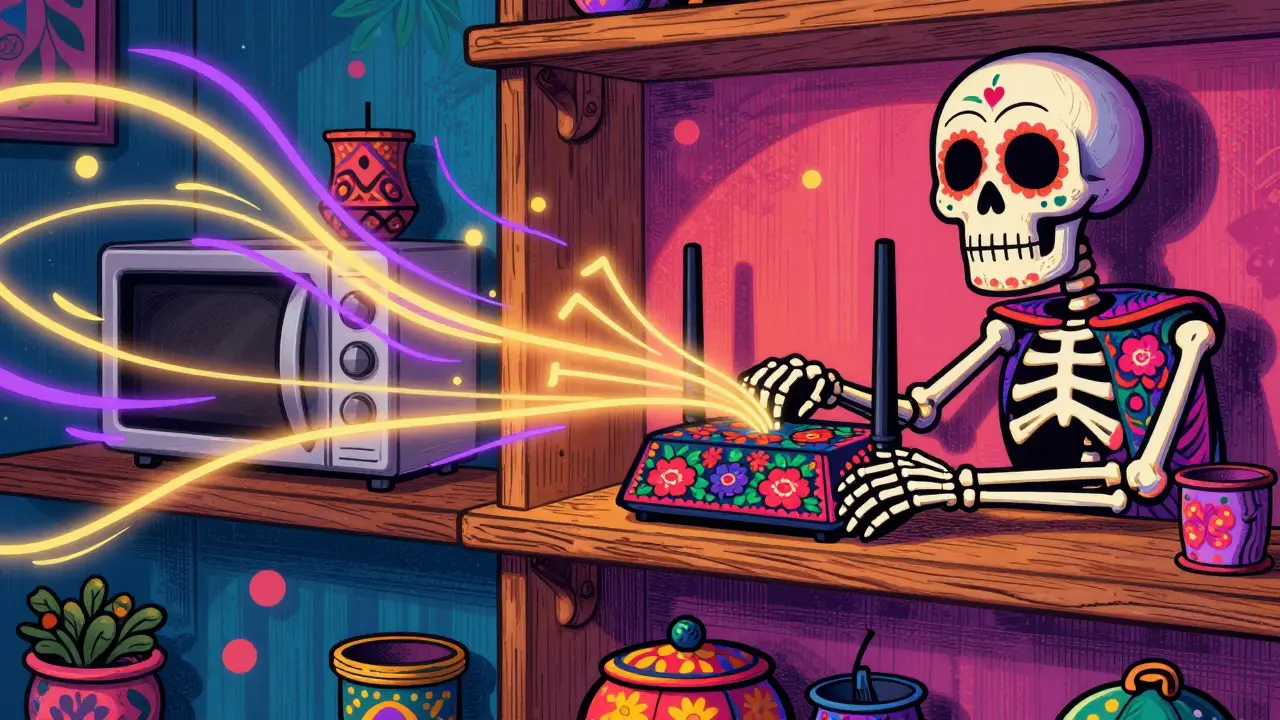
Can my microwave actually interfere with my streaming?
Yes, absolutely. Microwaves operate on the 2.4 GHz frequency, which is the same frequency many routers use. If your router or device is near the kitchen, turning on the microwave can create massive electromagnetic interference, causing your stream to stutter or disconnect entirely.
What is the best DNS for streaming?
Cloudflare (1.1.1.1) and Google (8.8.8.8) are generally the fastest and most reliable globally. They often resolve the addresses of streaming servers faster than the default DNS provided by your ISP, which can reduce the initial lag when you hit the play button.
Do I need a new router if I upgrade to a faster internet plan?
Probably. If you upgrade to a Gigabit plan but are using an old Wi-Fi 5 (802.11ac) router, the router becomes the bottleneck. You won't see those Gigabit speeds over wireless unless you have hardware that supports Wi-Fi 6 or 6E and devices that can actually utilize those speeds.
Next Steps for Different Setups
If you live in a small apartment, focus on frequency management. Switch your streaming device to 5 GHz and move the router away from other electronics. You likely don't need new hardware, just a better placement strategy.
For those in large multi-story homes, stop trying to "boost" a single signal. Invest in a Mesh Wi-Fi system. Place one node on each floor to ensure your streaming device always has a strong, local connection to the network.
If you are a hardcore gamer or cinephile who demands 4K HDR without a single glitch, the only real solution is a wired infrastructure. Run Cat6 Ethernet cables to your main entertainment center. It's a bit of work up front, but it completely removes the variables of interference and signal drop-off, giving you a rock-solid stream every time.
