
You press play on that cinematic masterpiece, expecting smooth motion and immersive visuals. Instead, you get a choppy mess. The camera pans feel jerky, fast movements look like stop-motion animation, and your eyes strain to keep up with the erratic pacing. This isn't just annoying; it ruins the entire viewing experience. If you are watching content shot at 24 frames per second (fps)-the standard for film-and seeing stutter or judder, you are likely dealing with a mismatch between your source material and your display hardware.
The good news? This is rarely a broken device. It is almost always a configuration issue. By understanding how frame rates interact with refresh rates, you can eliminate judder and restore that buttery-smooth look directors intended. Let’s break down why this happens and exactly how to fix it on your TV, monitor, or laptop.
Why Does 24p Content Look Choppy?
To fix the problem, we first need to understand the mechanics behind it. Most modern displays-whether they are high-end OLED TVs or budget gaming monitors-operate at refresh rates of 60Hz, 120Hz, or even higher. A 60Hz screen updates its image 60 times every second. However, most movies and high-quality streaming series are captured and mastered at 24fps.
Here is the math problem: 24 does not divide evenly into 60. When your player tries to show 24 frames on a 60Hz screen, it has to duplicate some frames and drop others to make the numbers work. This process is called 3:2 pulldown (or telecine). The pattern goes: show Frame A twice, Frame B three times, Frame C twice, Frame D three times, and so on. Because some frames are shown longer than others, your eye perceives this uneven timing as "judder" or stutter, especially during panning shots.
If your stream is buffering due to poor internet, that causes freezing. But if the motion itself looks jagged while playing continuously, that is a frame rate mismatch. Recognizing this difference is step one toward a smoother watch.
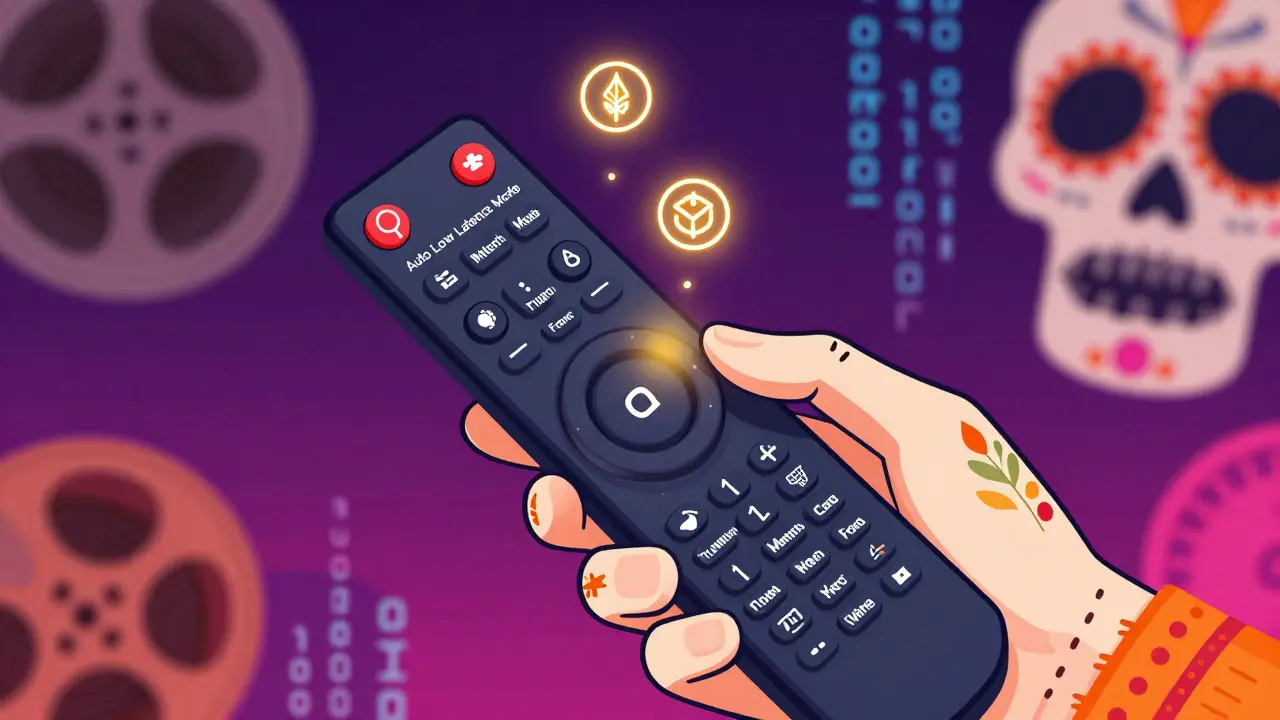
Fix #1: Enable MatchFrame or Auto Low Latency Mode
The most effective solution is to force your display to change its refresh rate to match the content. Modern HDMI standards support variable refresh rates (VRR) and specific low-latency modes that allow your TV or monitor to switch from 60Hz to 24Hz when it detects 24fps content.
This feature goes by different names depending on your brand:
- Samsung: Look for "Auto Low Latency Mode" or "Game Motion Plus" (sometimes needs to be off for pure 24p).
- Sony: Enable "Auto Motion Plus" set to "Clear" or ensure "Frame Rate Matching" is on in the external input settings.
- LG: Check for "TruMotion" settings; often, turning TruMotion off allows native 24p passthrough, or enabling "Film Mode" forces 24Hz.
- Gaming Monitors: Look for "Adaptive-Sync," "FreeSync," or "G-Sync Compatible." These technologies dynamically adjust the panel's refresh rate to match the GPU output, effectively eliminating tearing and judder.
When enabled correctly, your display will physically refresh at 24Hz. Since 24 divides evenly into 24, each frame gets exactly the same amount of time on screen. The result is instant smoothness. Note that switching refresh rates may cause a brief black screen or audio dropout for a second or two as the handshake occurs. This is normal.
Fix #2: Adjust Your Media Player Settings
If you are streaming via a dedicated app (like Netflix, Disney+, or Max), the app handles much of this automatically. However, if you are using local files or advanced players like VLC Media Player, MPC-HC, or PotPlayer, you have manual control.
In VLC, go to Tools > Preferences > Input / Codecs. Look for the option "Force deinterlacing" and try setting it to "YADIF" or "Skip duplicates." More importantly, check your Video section for "Hardware-accelerated decoding." Enabling this ensures your GPU handles the rendering, which often includes better sync capabilities than software decoding.
For Windows users playing local files, MPC-BE or MPC-HC combined with MadVR renderer offers granular control. You can configure MadVR to use "Frame Rate Conversion" algorithms that interpolate new frames rather than simply duplicating them. While interpolation can introduce soap-opera effects, sophisticated algorithms like SVP (Smooth Video Project) can create a fluid 60fps experience from 24p source without the judder of 3:2 pulldown.
Fix #3: Streaming Service Specifics
Streaming platforms compress video heavily to save bandwidth. Sometimes, the stutter isn't judder but actual packet loss or bitrate fluctuations. Here is how to optimize for major services:
| Platform | Key Setting to Check | Recommended Action |
|---|---|---|
| Netflix | Playback Settings | Set data usage to "High." Ensure HDR is enabled if supported, as HDR streams often prioritize stable frame delivery. |
| Disney+ | HDR & Frame Rate | Enable "Allow Dolby Vision" and "Allow HDR." These formats often carry metadata that helps displays switch modes correctly. |
| Amazon Prime Video | Video Quality | Turn on "Auto-adjust streaming quality" OFF. Force the highest available resolution to prevent dynamic downsampling artifacts. |
| YouTube | Resolution | Manually select 1080p or 4K. YouTube's adaptive bitrate can sometimes stutter on auto if your connection fluctuates slightly. |
Also, consider the device you are streaming on. An Apple TV 4K or NVIDIA Shield typically handles frame rate switching more gracefully than older smart TV built-in apps. If your TV's native app stutters, try casting from a phone or using an external dongle.
Hardware Limitations: When Nothing Works
Some older displays simply cannot change their refresh rate. If your TV was manufactured before 2015, it likely lacks the HDMI 2.0a/b firmware required for dynamic refresh rate switching. In these cases, you are stuck with 60Hz (or 50Hz in PAL regions).
If you cannot switch to 24Hz, your next best option is to improve the interpolation. Many TVs have a "Motion Smoothing" or "Soap Opera Effect" feature. While cinephiles hate this because it makes movies look like TV news, it technically eliminates judder by generating fake intermediate frames. If your goal is purely smooth motion and you don't care about the "film look," turn this feature on.
Another culprit is the HDMI cable itself. For 4K HDR content at 24fps, you need a High-Speed HDMI cable (HDMI 2.0) or preferably an Ultra High Speed HDMI cable (HDMI 2.1). A cheap, old cable might bottleneck the signal, causing the receiver to drop frames, which manifests as stutter. Swap the cable if you haven't recently.
Quick Troubleshooting Checklist
Before calling tech support, run through this list. It solves 90% of playback issues:
- Restart the Device: Simple, but clears temporary buffer errors.
- Check Internet Speed: Run a speed test. For 4K streaming, you need a sustained 25 Mbps+. Fluctuations cause buffering stutter.
- Update Firmware: Check for TV or streaming stick updates. Manufacturers frequently patch frame rate switching bugs.
- Disable Post-Processing: Turn off any "Noise Reduction" or "Sharpness" enhancements on the TV. These add processing lag that can desync audio/video.
- Test Another Source: Play a different movie. If only one file stutters, the file is corrupted. If all 24p content stutters, it's your setup.
Frequently Asked Questions
Is 24fps better than 60fps for movies?
Yes, for traditional cinema. 24fps provides a specific aesthetic known as "motion blur" that audiences associate with films. 60fps makes everything look hyper-realistic, which can be distracting for dramatic narratives. However, 60fps is superior for sports and video games where clarity of fast motion is prioritized over artistic style.
Why does my TV flicker when I enable 24p mode?
This is usually a backlight pulsing issue. Some LED backlights dim rapidly to save power, and at lower refresh rates like 24Hz, this strobing becomes visible. Try disabling "Energy Saving" or "Eco Mode" in your TV's power settings. Alternatively, increase the brightness slightly to see if the flicker reduces.
Can bad Wi-Fi cause video judder?
Wi-Fi issues cause buffering (pausing), not judder (choppy motion within a playing scene). However, severe packet loss can cause the player to skip frames to catch up, which looks like stutter. For consistent 4K 24p streaming, a wired Ethernet connection is always recommended over Wi-Fi.
Does HDR affect frame rate stability?
HDR (High Dynamic Range) requires more bandwidth than SDR (Standard Dynamic Range). If your HDMI cable or port is weak, adding HDR can push the signal beyond its limit, causing the device to drop frames or revert to a lower resolution. Always use certified High-Speed HDMI cables for HDR 24p content.
What is the difference between stutter and lag?
Lag is a delay between your action (like pressing play) and the response, or audio being out of sync with video. Stutter is visual inconsistency where the video jumps or hiccups during continuous playback. Lag is usually a network or processing speed issue; stutter is usually a frame rate mismatch or compression artifact.
Getting rid of judder takes a bit of tinkering, but once you dial in your settings, the difference is night and day. Your eyes will thank you, and you'll finally see the movie exactly as the director framed it. Start with your display's refresh rate settings, and work your way down to the cable. Smooth sailing awaits.
