

Ever handed your kid the Apple TV remote only to find them three levels deep into a horror movie you didn't know was on the home screen? Or worse, watched in horror as a $19.99 movie rental charge hit your credit card because they thought "Free" meant "No Cost"? If that sounds familiar, you're not alone. The Apple TV is a fantastic streaming hub, but out of the box, it's wide open for anyone with a remote. That's where Apple TV restrictions come in. These built-in parental controls let you lock down apps, stop accidental purchases, and filter content by age rating so your living room stays drama-free (the good kind).
This isn't just about blocking bad words. It's about curating an experience that fits your household. Whether you have toddlers who mash buttons or teenagers who think they know better than the system, setting up these limits takes about five minutes but saves you hours of cleanup later. Here is how to get those boundaries in place without turning your smart TV into a brick.
The Core Setup: Where to Find Restrictions
First things first: you need to navigate the maze. On newer tvOS versions (which run on most modern Apple TVs), the path is consistent. Go to Settings > General > Restrictions. You'll be asked to set a four-digit passcode. Do not use 0000 or 1234. Pick something random that you won't forget, because if you lose this code, resetting it can be a pain involving your Apple ID password. Once you're in, you see a menu of toggles. This is your control panel.
Why bother with a passcode? Because kids are clever. They figure out that pressing the back button repeatedly gets them past simple prompts. A hard-coded PIN stops that bypass instantly. Think of it as the digital deadbolt on your front door.
Locking Down Content Ratings
This is usually the biggest worry for parents. You want to ensure that when your child browses movies or shows, they don't stumble upon R-rated violence or explicit language. In the Restrictions menu, look for Content Restrictions. Here, you can set separate limits for Movies, TV Shows, Books, and Apps.
You can choose specific age gates like "Rated G," "PG," or "TV-14." For example, if you select "PG" for movies, anything rated PG-13 or higher simply disappears from search results and recommendations. It doesn't show a warning; it just isn't there. This is cleaner than trying to explain why a movie was blocked after they clicked play.
| Category | Filter Option | What Gets Blocked |
|---|---|---|
| Movies | PG | All PG-13, R, NC-17 titles hidden from browse/search. |
| TV Shows | TV-PG | Shows rated TV-14, TV-MA excluded from suggestions. |
| Apps | Age 4+ | Apps rated 9+, 12+, 17+ cannot be downloaded. |
| Books | Teen | Mature themes in e-books restricted. |
A pro tip here: check your actual library. Sometimes, older shows haven't been properly tagged in the metadata, or a user-generated list might slip through. But for major platforms like Netflix or Disney+ integrated into the Apple TV interface, these filters work surprisingly well because they rely on standard industry ratings.
Stopping Accidental Purchases and Rentals
Kids love clicking "Play" on trailers, and sometimes that leads straight to a purchase page. One click, and boom-$5 gone. To stop this, go back to the main Restrictions screen and find In-App Purchases & Downloads.
- Require Password: Turn this ON. Every time someone tries to buy or rent, the four-digit code is needed.
- Disable In-App Purchases: If you want to be stricter, turn this OFF entirely. This prevents any spending inside free apps, which is great for games or subscription trials that try to upsell you mid-stream.
There's also a sneaky option called "Hide Purchased Items." If you've already bought some adult-oriented content (maybe you watch thrillers at night), you can hide those specific titles from the main view while keeping them accessible via direct search if you know the name. It keeps the homepage family-friendly without deleting your own collection.
Managing App Access and Downloads
Not every app on the store is suitable for a six-year-old. Some have chat features, others have ads that aren't exactly kid-safe. Under Content Restrictions, scroll down to Apps. You can block apps based on their age rating (e.g., 4+, 9+, 12+, 17+). If you set it to 4+, any app rated 9 or higher cannot be installed.
But what if you want to allow specific apps even if they are rated higher? You can't whitelist individual apps easily in the global restriction menu. Instead, you manage this via Screen Time on your paired iPhone or iPad. Yes, Screen Time syncs with Apple TV. This allows for more granular control. For instance, you might allow YouTube Kids but block the standard YouTube app. Doing this via Screen Time lets you approve specific downloads remotely, which is handy if you're at work and your kid tries to download a new game.
Using Screen Time for Deeper Control
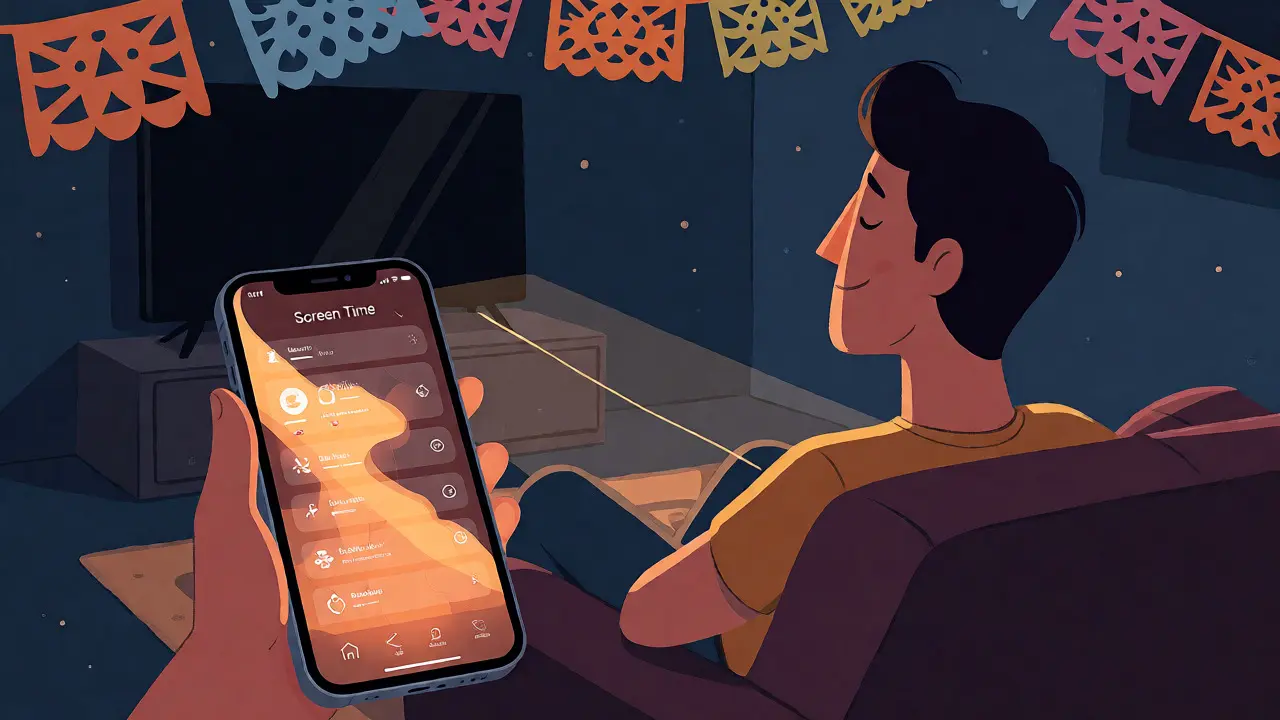
If the basic Restrictions menu feels too blunt, Screen Time is the scalpel. Available on tvOS 16 and later, Screen Time offers detailed reports and scheduling.
Connect your Apple TV to your iCloud account, then open Screen Time on your phone. You can set "Downtime" schedules. Maybe no TV after 8 PM on school nights. You can also set "App Limits." Want to cap gaming apps to one hour per day? Done. When the limit hits, the app grays out. You can request "One More Minute," but that requires your passcode. This teaches kids about time management rather than just saying "no."
Furthermore, Screen Time lets you restrict web browsing. If your child uses Safari on Apple TV (yes, it exists), you can limit it to allowed websites only. This prevents them from wandering into unmoderated corners of the internet during homework breaks.
Troubleshooting Common Issues
Sometimes, changes don't stick immediately. If you change a rating limit but still see a mature movie, restart the Apple TV. It needs a moment to refresh its cache and re-index the visible content. Also, remember that third-party apps like Hulu or Amazon Prime Video handle their own internal profiles. Apple TV restrictions apply to the OS level, but within the Netflix app, you might still need to set up a separate "Kids Profile" inside Netflix itself for double protection.
Another common pitfall: forgetting the passcode. If you do, you can reset it using your Apple ID password, but you'll have to re-enter your Wi-Fi credentials afterward. Write the code down somewhere physical. Seriously. Digital memory fails.
Key Takeaways
- Set a unique passcode in Settings > General > Restrictions to prevent bypasses.
- Use Content Ratings to automatically hide movies and shows above a certain age threshold.
- Require passwords for purchases to stop accidental rentals and in-app spending.
- Leverage Screen Time for daily usage limits and scheduled downtime.
- Check third-party apps individually, as some require their own profile settings.
Does Apple TV restrictions work across all apps?
Mostly, yes. The OS-level restrictions filter content in the Apple TV app and block downloads of disallowed apps. However, some third-party apps like Netflix or Disney+ have their own internal parental controls. For maximum safety, enable restrictions in both the Apple TV settings and within each specific app's profile settings.
Can I hide purchased movies from my kids?
Yes. In the Restrictions menu, you can toggle "Hide Purchased Items." This removes your personal purchases from the main browse view. Your children won't see them unless they specifically search for the title, and even then, depending on your other filters, they might be blocked entirely.
How do I reset my Apple TV restriction passcode?
If you forget the passcode, go to Settings > General > Restrictions. Enter a wrong code multiple times until it asks for your Apple ID password. After verifying your identity, you can create a new four-digit passcode. Note that this may sign you out of some services temporarily.
Do restrictions apply to AirPlay?
No. If someone AirPlays content from an iPhone or iPad to the Apple TV, the Apple TV restrictions generally do not filter that stream. The source device controls the playback. To restrict this, you would need to apply similar restrictions on the sending device or use Screen Time to limit AirPlay usage.
Can I block specific apps entirely?
You can block apps by age rating globally. To block a specific app regardless of rating, use Screen Time on your iPhone/iPad linked to the same Apple ID. You can add that specific app to "Always Allowed" or remove it from allowed categories, effectively hiding it from the home screen for restricted users.