

You pay for one Apple TV+ is a premium streaming service offering original movies and series. subscription, but your whole household wants to watch. That’s exactly what the ecosystem is designed for. You don’t need to buy five separate accounts. Apple allows you to share your subscription with up to six other people through a feature called Family Sharing.
However, setting this up isn’t as simple as sending a text message. It requires configuring your primary Apple ID is the unique account identifier used to access Apple services and stores. correctly. If you skip a step, your spouse might get an error when trying to open the app, or worse, they might accidentally charge something to your card if permissions are too loose. Let’s walk through exactly how to set this up so everyone can stream without friction.
Who Can Join Your Family Group?
Before you start typing in email addresses, understand who qualifies. Apple defines a "family" broadly. It doesn’t have to be blood relatives. You can include:
- Your partner or spouse.
- Children living at home.
- Roommates or close friends (though Apple’s terms technically restrict this to family).
- Up to six people total, including yourself.
The key constraint is that each person needs their own distinct Apple ID. You cannot simply log into your account on their iPad. Each member must have their own identity within the system. This ensures that their viewing history, recommendations, and purchases remain private from yours.
Step-by-Step: Setting Up Family Sharing on iPhone or iPad
Most users manage these settings via iOS because it’s more intuitive than navigating menus on a desktop. Here is the precise path to take in 2026:
- Open the Settings app on your iPhone or iPad.
- Tap your name at the very top of the screen. This opens your Apple ID profile.
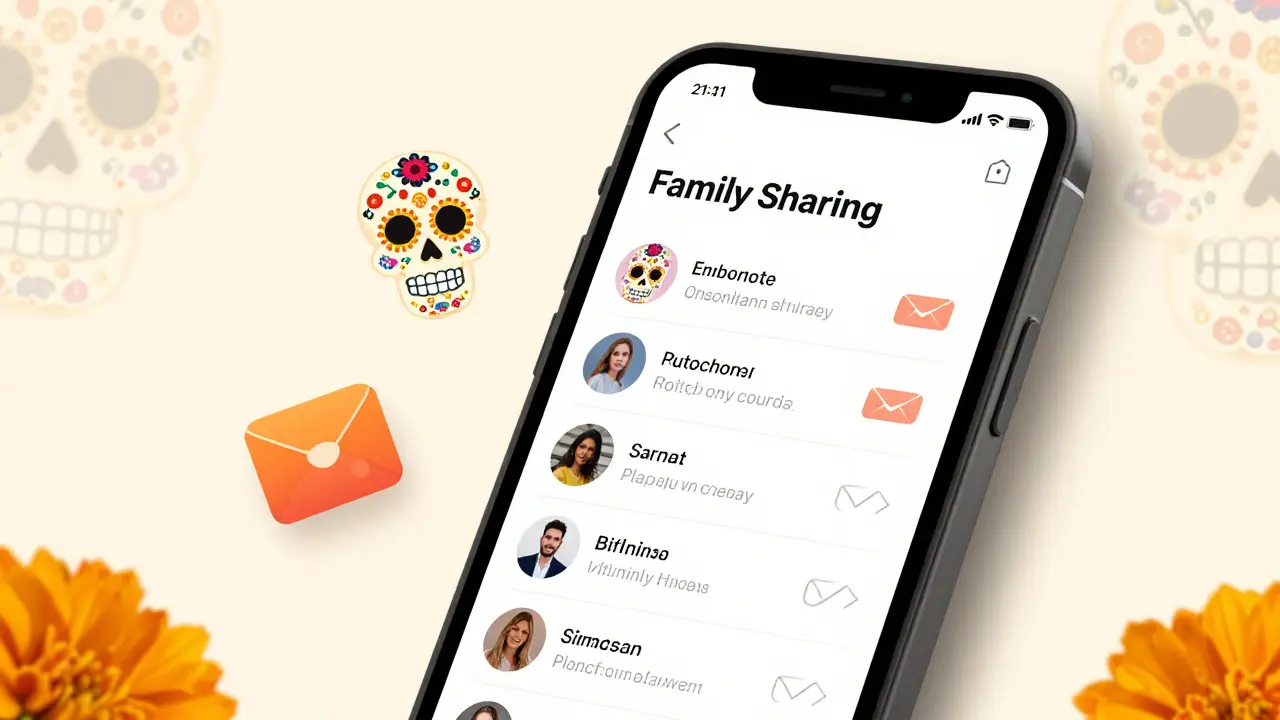
- Select Family Sharing. If you see a prompt asking to create a family group, tap Create Your Family.
- If you already have a group, you will see a list of current members. Tap Add Member.
- Choose Invite Someone.
- Enter the email address associated with their Apple ID, or send an invitation via iMessage if they are in your contacts.
Once sent, the invitation goes to their Messages app or Mail. They must accept it to join. Until they click "Accept," they won’t have access to your shared content.
Setting Up on Mac
If you prefer using your computer, the process is similar but located in System Settings:
- Click the Apple logo in the top-left corner.
- Select System Settings (or System Preferences on older macOS versions).
- Click your name/Apple ID in the sidebar.
- Select Family Sharing.
- Click the + button or Add Member to send invitations.
Note: The organizer (you) must be 18 years or older and have a valid payment method attached to their Apple ID, even if you’re sharing free trials or ad-supported tiers, though Apple TV+ is a paid subscription.
How Members Access Apple TV+
This is where most confusion happens. Adding someone to the family group does not automatically push the app onto their device. They have to activate it manually.
Tell your family members to do the following on their device (iPhone, iPad, Apple TV box, or Mac):
- Open the TV app (formerly known as Apple TV).
- Navigate to the Watch Now tab or the library section.
- If prompted, sign in with their own Apple ID. Do not use yours.
- They should see a banner saying "Shared by [Your Name]."
If they don’t see the content immediately, ask them to check their Media & Purchases settings. Sometimes, the toggle for "Share My Purchases" or "See Shared Purchases" is off by default for privacy reasons. They need to ensure that visibility is enabled for your specific family group.
Managing Children and Parental Controls
If you are adding kids to the family group, you likely want to control what they can watch and prevent accidental in-app purchases. Apple makes this easy through Screen Time is a feature that helps manage device usage and content restrictions.
As the organizer, you can set age ratings for movies and shows. For example, you might allow PG-13 but block R-rated content. To do this:
- Go to Settings > Screen Time on your child’s device (or manage it remotely from your own device under Family Sharing).
- Select Content & Privacy Restrictions.
- Toggle it on.
- Under Allowed Apps or Content Restrictions, set the maturity rating for Movies, TV Shows, and Music.
This ensures that while they have access to the vast library of Apple Originals, they only see content appropriate for their age group. You can also require a password for any new downloads, preventing them from renting additional movies outside the subscription.

What Is Actually Shared?
It’s important to clarify what "sharing" means in this context. When you enable Family Sharing for Apple TV+, you are sharing:
- Access to the entire catalog of Apple Original movies and series.
- Any rented or purchased movies (if you choose to share purchases).
You are not sharing:
- Personal data or viewing history. Your "Up Next" queue remains private to you.
- Downloads. If you download a movie for offline viewing on your phone, that file stays on your phone. They must download their own copy.
- Credit card details. While payment methods can be shared for purchases, Apple TV+ itself is billed once to the organizer. Family members cannot spend your money unless you explicitly enable purchase sharing and they make a transaction.
Troubleshooting Common Issues
Even with clear instructions, things sometimes glitch. Here are the three most common problems and how to fix them.
Issue 1: "This Subscription is Not Available" Error
If a family member sees this, it usually means their region differs from yours. Apple TV+ content rights vary by country. If you live in New Zealand and invite a friend in Japan, they may not see the same library. Ensure all members are in compatible regions, or acknowledge that some titles may be geo-blocked for them.
Issue 2: Invitation Never Arrives
Check the spam folder. Also, verify that the email address they provided is definitely linked to their Apple ID. Many people use different emails for iCloud versus their App Store account. Ask them to confirm which email they use to sign in to the App Store.
Issue 3: Content Appears Grayed Out
This often happens if the family member has their own active Apple TV+ subscription. Apple does not allow two active subscriptions to merge. One person must cancel their individual plan to benefit from the shared family plan. Only one organizer pays; others must rely on the share.

Removing a Member
Life changes. People move out, relationships end, or you just want to reset the group. Removing someone is straightforward:
- Go to Settings > [Your Name] > Family Sharing.
- Tap the person’s name.
- Select Remove from Family.
- Confirm the action.
Once removed, they lose immediate access to your shared Apple TV+ content. If you remove a child, their account becomes independent, and you will no longer see their location or activity reports.
| Feature | Individual Plan | Family Sharing (Organizer) |
|---|---|---|
| Cost per User | Full Price | Split Cost (Up to 7x Savings) |
| Privacy of History | High (Only You) | High (Private Profiles) |
| Parental Controls | N/A | Yes (Age Ratings & Purchase Limits) |
| Shared Purchases | No | Optional (Movies/Rentals) |
| Management Complexity | Low | Medium (Requires Setup) |
Maximizing Value: Tips for Organizers
To get the most out of this setup, consider these practical tips:
- Use Home Sharing for Older Devices: If you have an older Apple TV (4th gen or earlier), you might need to enable "Home Sharing" in iTunes/Finder on your Mac to sync content locally. Newer devices stream directly over Wi-Fi.
- Sync Watchlists Carefully: While histories are private, if you both add a show to "Watch Later," it might appear in shared views depending on iOS version updates. Stick to personal queues to avoid spoilers.
- Review Payment Methods Quarterly: If you share purchases, check your statements. A child might accidentally rent a $5 movie. Turning off "Ask to Buy" for minors prevents this.
Setting up Family Sharing takes about ten minutes. Once done, it runs silently in the background. Your family gets access to high-quality originals like Silo, Severance, and The Morning Show without cluttering your wallet with duplicate bills. Just remember: keep your passwords private, manage your children’s limits, and ensure everyone uses their own Apple ID.
Can I share my Apple TV+ subscription with friends who don't live with me?
Technically, yes. Apple’s Family Sharing feature does not verify physical addresses. However, Apple’s Terms of Service state that Family Sharing is intended for family members living in the same household. While enforcement is rare, using it strictly for non-family members carries a small risk of account review if flagged for unusual activity.
Does Family Sharing work across different countries?
No. All family members must have their Apple ID set to the same country or region. If you are in New Zealand, your family members must also have their store region set to New Zealand. You cannot share a US subscription with someone in Europe due to licensing and tax laws.
Will my family see what I’ve watched?
No. Viewing history is private. Each family member has their own personalized recommendation engine. Your "Up Next" queue and watch history are not visible to others in the family group unless you explicitly share a specific title link via iMessage.
What happens if I cancel my Apple TV+ subscription?
All family members will immediately lose access to Apple TV+ content. They will not be charged, but they will need to subscribe individually if they wish to continue watching. Any previously downloaded content may become unplayable after a short grace period.
Can I change the Family Organizer later?
You cannot directly transfer the "Organizer" role. To change the organizer, the current organizer must leave the family group, and then another adult member can be promoted to organizer. This process requires careful coordination to avoid losing access to shared purchases during the transition.
