
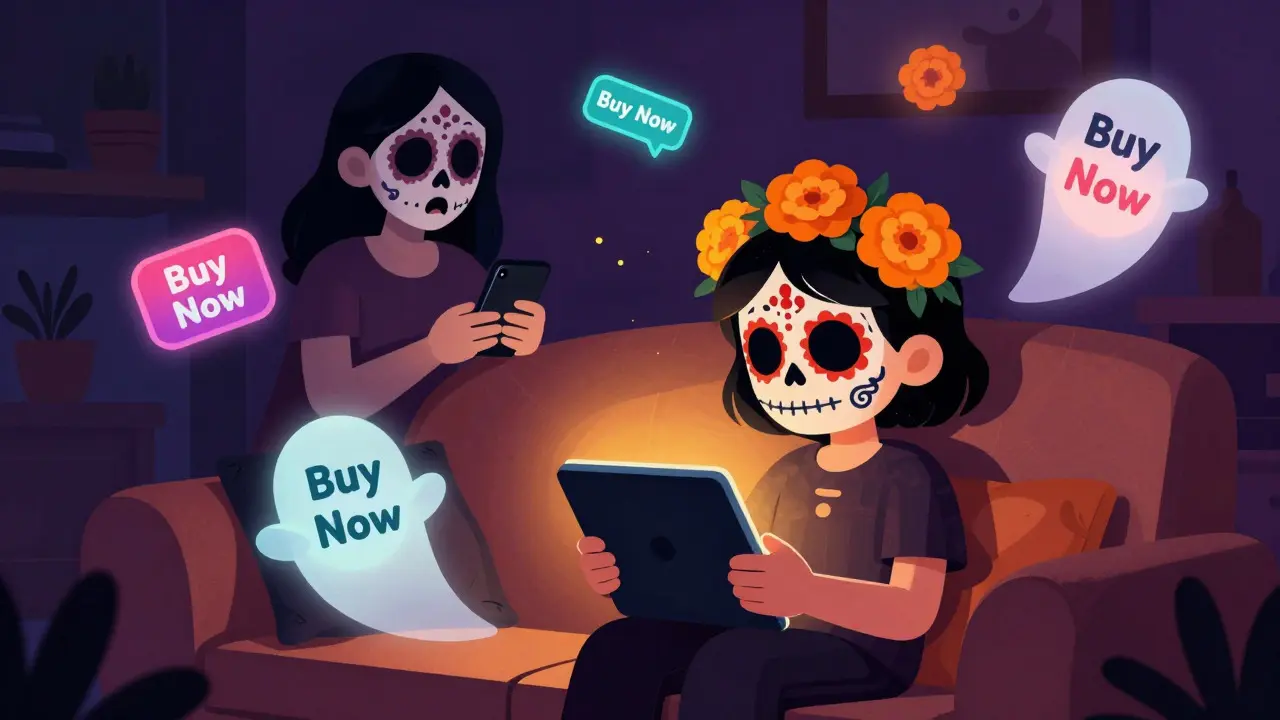
You know that sinking feeling. You’re relaxing on the couch, maybe half-watching a show with your partner or roommate, when your phone buzzes. It’s an email from Apple or Google Play. "Your purchase of $49.99 has been confirmed." Your heart drops. You didn’t buy anything. But your seven-year-old, who was supposed to be watching cartoons on their own profile, somehow navigated past three screens of warnings and bought a skin for a game they don’t even play.
This isn’t just a minor annoyance; it’s a recurring nightmare for families sharing digital subscriptions. With subscription management becoming more complex as we juggle Netflix, Disney+, Spotify, and gaming accounts, the line between entertainment and expense is dangerously thin. When kids share profiles with adults, or when devices are passed around like hot potatoes, accidental clicks turn into real money lost. The good news? You can lock this down without turning your living room into a fortress of passwords.
The Anatomy of an Accidental Purchase
To stop these charges, you first need to understand how they happen. It’s rarely because a child is trying to steal your credit card. Usually, it’s a combination of frictionless design and confusion. Modern apps are designed to reduce steps between interest and purchase. One tap to add to cart, one face ID scan, and boom-the transaction is done. For an adult, this is convenience. For a child holding a tablet, it’s a game of whack-a-mole where every pop-up ad looks like part of the fun.
When you share a profile, especially on platforms like Amazon Prime Video or Xbox Live, the account inherits the payment methods attached to the primary owner. If your kid logs into "Mom's Account" to watch a movie, they might also have access to the store. They see a bright button labeled "Buy Now" or "Unlock for $0.99." They tap it. The system asks for confirmation. They tap again. The charge goes through before you even realize the screen changed.
There are three main culprits here:
- Shared Credentials: Everyone knows the password, so everyone has full admin rights.
- Stored Payment Methods: Credit cards saved on the device allow one-tap purchases.
- Lack of Granular Controls: Most default settings assume the user is an adult with spending power.
Profile Separation: The First Line of Defense
The most effective way to prevent accidental purchases is to stop sharing the main profile entirely. Every major streaming service and operating system now offers robust profile separation features. These aren't just for tracking viewing history; they are security gates.
On services like Netflix, Hulu, and Disney+, you can create distinct profiles for each child. These profiles often come with built-in maturity ratings. More importantly, many platforms now offer "Kids Profiles" that restrict access to the store altogether. If there is no store, there is nothing to buy. Check your specific service settings. Look for options labeled "Children," "Kids," or "Restricted." Enable these immediately.
If you are using a shared device, such as a family iPad or a living room smart TV, ensure that the child always logs into their specific profile. Do not leave the device logged into the primary adult account. This habit alone eliminates 80% of accidental purchase risks. It requires a bit of discipline-making sure everyone logs out when they are done-but it pays off in peace of mind.

Operating System Level Lockdowns
Profiles on streaming apps are helpful, but the real danger lies at the operating system level. Whether you are using iOS (iPhone/iPad), Android, or Windows, these systems control the actual payment gateways. You need to set up barriers here that require physical verification or a PIN that only you know.
| Platform | Key Feature | Purchase Requirement | Best For |
|---|---|---|---|
| iOS / iPadOS | Screen Time & Family Sharing | Password required for every purchase | Families already in Apple ecosystem |
| Android | Google Family Link | Parental approval via separate app | Managing multiple Android devices |
| Windows | Microsoft Family Safety | PIN required for Microsoft Store | Gaming PCs and Xbox consoles |
| Xbox Console | Xbox Family Settings | Block all purchases or require PIN | Dedicated gaming households |
For Apple users, go to Settings > Screen Time > Content & Privacy Restrictions. Turn this on, then navigate to iTunes & App Store Purchases. Set "In-app Purchases" to "Don't Allow" or "Ask for Age [X]." The latter is better for older kids who might legitimately want to buy a book or a song, as it sends a request to your phone for approval. For younger children, "Don't Allow" is the safest bet.
Android users should utilize Google Family Link. This app allows you to manage your child's device from your own phone. You can approve or deny app downloads and in-app purchases remotely. It adds a layer of friction that stops impulsive taps. Even if the child has the device, they cannot complete the transaction without your explicit "Yes" on your end.
Payment Method Hygiene
Even with strict profile and OS settings, it is wise to audit your payment methods. Many people keep old gift cards, expired credit cards, or secondary debit cards linked to their accounts "just in case." This clutter increases risk. If a child bypasses a setting, they might grab funds from a card you forgot about.
Remove any unnecessary payment methods from shared devices. Keep only one primary method linked to the adult profile, and ideally, use a virtual card number or a prepaid card with a low limit for shared family accounts. Services like Privacy.com or virtual card features from banks allow you to generate single-use or merchant-specific card numbers. If a child manages to make a purchase, the damage is capped, and you can freeze that specific virtual card instantly without affecting your main finances.
Also, check the "Auto-Renewal" settings for subscriptions. Sometimes, what looks like an accidental purchase is actually a forgotten free trial converting to a paid subscription. Review your active subscriptions quarterly. Cancel anything you haven't used in the last month. This keeps your financial dashboard clean and reduces the attack surface for accidental charges.
Educating Kids About Digital Money
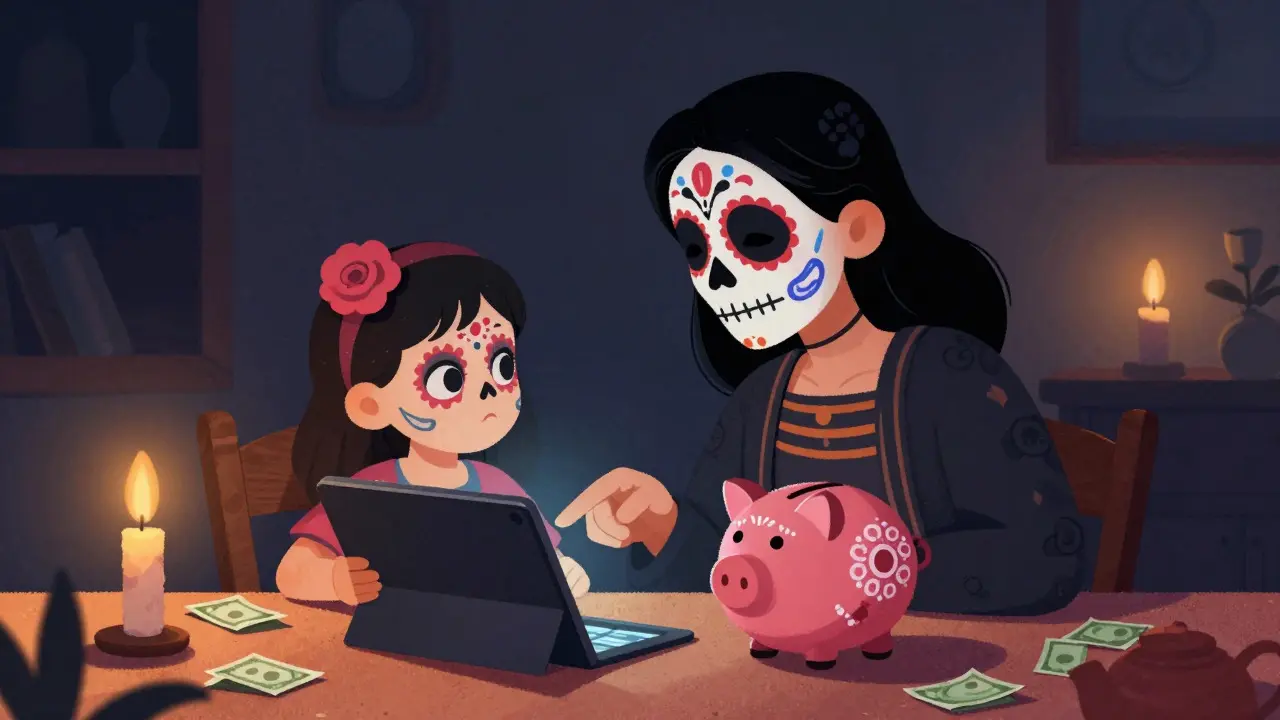
Technology controls are essential, but they aren't foolproof. Kids are clever, and they will find workarounds if they are motivated. The second pillar of prevention is education. Talk to your children about what happens when they click "Buy." Explain that digital items cost real money, just like toys at the store.
Use simple analogies. "Every time you tap that button, it's like taking a dollar out of our piggy bank." For older kids, involve them in the decision-making process. If they want to buy a game pass, sit down together, discuss the cost, and approve it manually. This turns a potential conflict into a teaching moment about value and budgeting.
Encourage them to ask before clicking. Make it a rule: "If it asks for money, put the device down and get Mom or Dad." Reinforce this positively. Praise them when they remember to ask. Over time, this behavior becomes habitual, reducing reliance on technical barriers alone.
Monitoring and Recovery
Despite your best efforts, accidents can still happen. Maybe you left your phone unlocked. Maybe a new update reset a setting. Regular monitoring is key. Check your bank statements and email receipts weekly. Set up alerts for transactions over a certain amount, say $5.00. This gives you immediate notification rather than waiting for the monthly statement.
If an accidental purchase does occur, act quickly. Most platforms have refund policies for unauthorized transactions, especially for minors. Contact customer support immediately. Provide details: the date, time, item purchased, and proof that the account holder did not authorize it. While refunds aren't guaranteed, being prompt and polite increases your chances significantly. Document everything. Take screenshots of the error or the unexpected charge. This evidence helps support your case.
Remember, the goal isn't to create a perfect, error-free environment. That's impossible. The goal is to minimize risk and build resilience. By combining profile separation, OS-level restrictions, payment hygiene, and open communication, you create a safety net that catches most slips. Your kids can enjoy their digital worlds, and you can sleep soundly knowing your wallet is secure.
How do I stop my kid from buying things on Netflix?
Netflix itself doesn't handle direct payments for content within the app in most regions, but if you are referring to in-app purchases on games accessed through a shared device, you need to restrict the device's OS settings. On iOS, use Screen Time to disable in-app purchases. On Android, use Family Link. Additionally, ensure your child uses a dedicated Kids Profile which limits access to certain interactive features.
Can I set a spending limit on a shared profile?
Most streaming services do not offer native spending limits per profile. However, you can achieve this by linking a prepaid card or a virtual card with a fixed balance to the account. Alternatively, use platform-specific tools like Xbox Family Settings, which allow you to set monthly spending caps for store purchases on that console.
What should I do if my child made an accidental purchase?
Act immediately. Go to the app store or platform where the purchase was made (Apple App Store, Google Play, Steam, etc.) and request a refund. Select the reason as "Unauthorized purchase by a child" or similar. Provide any supporting details. Simultaneously, check your email for the receipt and contact customer support if the automated refund process fails. Update your parental controls to prevent recurrence.
Is it safe to share my password with my teenager?
Sharing a password grants full administrative access, including payment methods and settings changes. It is generally safer to create a separate profile for your teenager with restricted permissions. If they must share an account, use a family plan feature that allows individual logins under one subscription, rather than sharing a single login credential. This maintains accountability and allows for granular control.
How do I remove a credit card from a shared streaming account?
Log into the account on a web browser, as mobile apps sometimes hide payment settings. Navigate to "Account" or "Subscription" settings. Look for "Payment Methods" or "Billing Information." Remove the unwanted card. Note that some services require at least one valid payment method on file for auto-renewal, so you may need to replace it with a different card before removing the old one.